
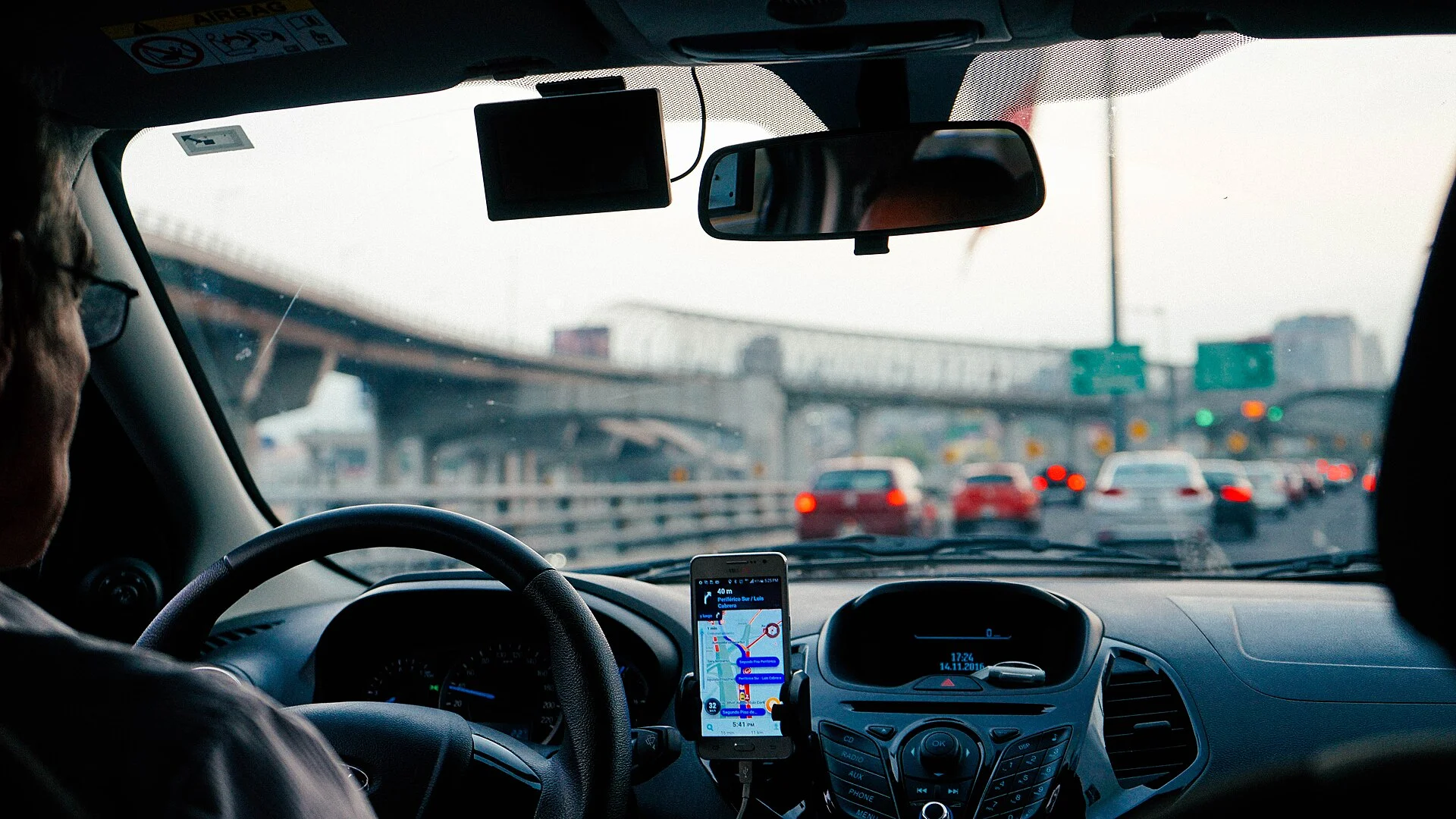
Your Footage Is on a Countdown, and the Clock Already Started
The whole point of a dash cam is that it never stops recording, and that is exactly why the clip you need is in danger. A dash cam uses loop recording: when the memory card fills up, the camera automatically erases the oldest footage to make room for new footage, around and around, forever. Cobra, Nextbase, and Vantrue all describe the same behavior in their documentation. It is a feature, not a fault. It is also a countdown, and the moment something worth keeping happens on the road, that countdown is running against you.
So the real question is not whether your camera saved the incident. It almost certainly did. The question is whether you protect that clip before the loop circles back and writes over it. Do nothing, and a hit-and-run, a road-rage merge, or the idiot who backed into your bumper in a parking lot can quietly vanish a few hours later, recorded over by your own commute home.
The good news is that every modern dash cam gives you a way to take a clip out of the loop and move it somewhere the overwrite cannot reach. There is a fast move you make in the moment, an automatic system that may have already done it for you, and a permanent move that gets the file off the card entirely. This guide walks all three, in the order you should actually do them when the pressure is on, plus the trap that quietly bites people who lock too much. Marketing calls it 'emergency protection.' What it really is, is you beating the loop.
First, Understand the Loop You Are Racing
You cannot beat a clock you do not understand, so spend thirty seconds on how the loop actually works. Instead of one giant video file, a dash cam chops the footage into short segments, usually one, three, or five minutes each. Zetronix and Nextbase both note these standard segment lengths. The camera writes segment after segment until the card is full, and then it deletes the single oldest segment to free space for the next one. Your footage is not erased all at once; it is erased one short clip at a time, oldest first.
That detail tells you how much time you really have. How long before the loop reaches your clip depends on two things:
- The size of the card.
- How fast the camera fills it.
A high-bitrate 4K stream eats storage roughly twice as fast as 1080p, so the same 128GB card that holds eight-plus hours of 1080p may hold only around four hours of 4K before it starts overwriting. Bigger card and lower resolution buy you more history; 4K and a small card buy you less. If you want the full picture of how long the card lasts at different settings, that math is worth knowing before you ever need it.
Here is the practical takeaway. If your incident happened minutes ago, the clip is near the front of the loop and you have hours, not seconds, before it is at risk on a normally sized card. That is enough time to do this right. But 'hours' is not 'forever,' and the surest way to lose footage is to assume you will deal with it tonight and then forget until tomorrow's drive has already recorded over it. Treat it as urgent, not instant, and act before you next start the car.
The Fastest Move: Hit the Lock Button in the Moment
The single fastest way to save a clip is to lock it manually while it is still recording. Nearly every dash cam has an emergency or protect button, usually a clearly marked key on the camera body with a little lock or shield icon. Press it during or right after the event, and the camera flags the segment currently being recorded as protected. A protected segment is moved out of the normal loop and into a separate event folder, and the loop is not allowed to overwrite anything in that folder. Cobra's support documentation describes this directly: locked files are stored apart and are not subject to loop recording.
The reason to do it in the moment is timing. Because each segment is only one to three minutes long, the clip you care about may span the boundary between two segments. Pressing the button as the event unfolds usually protects both the current segment and, on many cameras, a few seconds on either side, so you capture the approach and the aftermath, not just the half-second of contact. Wait too long and the moment can land in a segment that has already closed, which still saves if you act soon but gives you less margin.
If your camera has no physical button, the lock control almost always lives in the companion app over Wi-Fi: open the live view or the file list, find the clip, and tap the lock or protect icon. It is slower than a dedicated button, which is the whole argument for buying a camera with a real one if you drive somewhere incidents are likely. The skeptic's note: a button you have to fumble for in a glovebox is a button you will not press in the two seconds that matter. Know where yours is before you need it.
How the G-Sensor Locks Footage for You Automatically
You will not always have a free hand to press a button, which is the entire reason the G-sensor exists. A G-sensor is a small accelerometer that measures force across three axes: front-to-back, side-to-side, and up-and-down. TypesAuto's explainer lays out the mechanism cleanly. When the sensor detects a sudden spike in force that looks like a collision, hard braking, or a sharp swerve, the camera automatically triggers emergency recording: it locks the current segment and saves it to the same protected event folder a manual press would use. In a real crash, where you are busy not crashing, this is what saves the footage.
That means after any genuine impact, there is a strong chance the work is already done. Before you panic about the loop, check the event or locked folder on the card or in the app; the clip may already be sitting there, protected. This is also why a dash cam is worth having even in a fender bender you think was minor, and it feeds directly into being able to retrieve dashcam footage after a car is totaled, when the car is gone but the card and its locked event files often survive.
But the G-sensor is not magic, and counting on it blindly is how people get burned. RedTiger's own support article walks through cases where a dash cam lost footage after an impact, and a frequent cause is a G-sensor set too low to trigger, or a card too worn to write the locked file in time. Treat automatic locking as a safety net you are glad to have, not a guarantee you rely on. When you can, still press the button. Belt and suspenders beats faith in a sensor every time.
Tune the G-Sensor So It Protects the Right Things
The G-sensor has a sensitivity setting, and getting it wrong in either direction quietly defeats the protection you bought it for. Set it too low and a real collision may not generate enough force to trip it, so nothing gets locked and the loop eventually overwrites the one clip you needed. Set it too high and the opposite problem appears: every pothole, speed bump, and heavy door slam reads as an 'accident,' and the camera locks file after file of nothing.
That second failure is sneakier than it sounds, because it does not announce itself. DashCamTalk forum owners describe cards quietly filling with junk locked files from an over-sensitive sensor until the camera throws an error. The fix on most cameras is a simple menu choice between low, medium, and high sensitivity, and medium is the sane starting point for ordinary roads. If you drive rough gravel or washboard, step it down; if your camera rarely flags anything even after a sharp stop, step it up a notch.
There is a calibration trick worth doing: set it where you think it belongs, drive your normal week, and then check the event folder. If it is full of clips of you going over a railroad crossing, it is too sensitive. If a hard brake you remember left nothing behind, it is too dull. Marketing sells the G-sensor as set-and-forget. Reality is that ten minutes of menu tuning is the difference between a sensor that protects the right two clips a year and one that locks two hundred clips of speed bumps and strangles your own loop.
When in Doubt, Freeze the Loop: Power Off or Pull the Card
Here is the move nobody markets, and it is the most reliable one on this page. If you are not sure the clip is locked, or your camera has no easy lock button and you cannot fish out your phone, just stop the camera from recording. The loop can only overwrite footage while the camera is writing new footage. Take away the new footage and the countdown stops dead.
There are two ways to do it:
- The cleaner one: power the camera down — turn it off, or on a hardwired install, cut its power so it stops recording. With nothing new being written, the oldest segments are safe because nothing is competing for their space.
- The blunter one: physically remove the microSD card, which guarantees the loop cannot touch a thing because the storage is no longer in the camera.
The one rule: stop the recording before you pull the card, so you are not yanking it mid-write and corrupting the very file you are trying to save.
This is the right reflex at an accident scene, after a hit-and-run, or any time the stakes are high and you have a moment of doubt about whether the lock worked. It is cheap insurance: a powered-off camera has lost you nothing except a few minutes of footage of an empty parked car, and it has bought you all the time in the world to deal with the clip properly. The skeptic's version of belt and suspenders is to lock the file and power the camera off. Then nothing short of formatting the card can erase your evidence.
Get It Off the Card: The Only Truly Permanent Save
Locking a file protects it from the loop, but it is still sitting on a small card bolted to your windshield, and that is not where important evidence should live. A locked file can still be lost to a failing card, a reformat, a theft, or, embarrassingly, your own thumb deleting the wrong thing later. The only truly safe footage is footage that exists in more than one place. So the last step is always to copy the clip somewhere durable.
You have three honest paths:
- Fastest, for a single clip: the camera's companion app over Wi-Fi or Bluetooth — connect your phone, find the locked clip, and download a copy you can email, send to your insurer, or save to your photos.
- Most reliable, for several clips: pull the card and copy the files to a computer with a card reader, dragging the whole event folder somewhere safe.
- Gold standard, if supported: cloud upload pushes a locked event clip off the card the moment it is created, so it survives even if the camera and card are stolen with the car.
Whichever path you use, do it the same day. The pattern that loses footage is not a flaw in the camera; it is a person who locked the clip, felt safe, and left it on the card for three weeks until a corrupted card or an accidental format took it. Copy it off, confirm the copy actually plays on the other device, and only then consider the footage truly saved. A clip you have never verified on a second screen is a clip you are only assuming you have.
The Trap: Locked Files Fill the Card and Stop Recording
Now the failure mode that surprises almost everyone, because it turns your protection into the problem. Locked files are, by design, the files the loop is forbidden to overwrite. So every clip you lock, and every clip an over-sensitive G-sensor locks for you, permanently subtracts from the space the loop has to work with. Lock enough of them and the protected folder grows until the card has no free space left to loop into, and the camera throws an 'SD card full' error and stops recording new footage entirely.
A camera that has stopped recording because its protected folder is full is not broken. It is doing exactly what you told it to: it ran out of footage it is allowed to erase.
Cobra's support team addresses this specific situation, where a camera set to loop record still reports the card as full because locked files have eaten the space. The cause is almost always too many event files: a G-sensor cranked too high, or a habit of locking clips and never clearing them off. The fixes are straightforward once you know to look. Periodically empty the event folder after you have copied anything worth keeping; lower the G-sensor sensitivity if it is locking junk; and format the card inside the camera now and then to clear it cleanly. Worth knowing too: a card that throws a full or locked-file error spuriously may simply be wearing out, which ties into the broader issue of SD card errors that keep popping up.
The balance to strike is simple. Lock aggressively in the moment, because a missed clip is gone forever and storage is cheap. But clear the folder regularly, because a card full of old locked clips means the next incident records onto nothing at all. Protection you never clean up eventually protects nothing.
Footage From When You Were Not There: Parking Mode and Endurance
Not every clip worth saving happens while you are driving. The parking-lot door ding, the overnight key-scratch, the neighbor who clips your mirror and drives off all happen with the car empty, and they are exactly the events people most want to protect and most often lose. That is where parking mode comes in: the camera keeps watching while parked, typically waking on motion or impact, and a parking incident triggers the same G-sensor lock and protected event file a driving incident would.
The catch is that parking mode runs the camera and the card far harder than normal driving. The camera is recording, or at least armed and writing, during the long stretches your car sits unattended, which both drains whatever powers it and adds hours of writing to the card every day. Two things follow:
- Parking incidents you were not there to witness make checking the event folder a habit, not an afterthought — you may not even know something happened until you look.
- All that extra writing wears the card out faster, and a worn card is one that can fail to save the locked file at the worst possible moment.
This is why the card itself is part of footage protection, not a separate topic. A standard microSD card is not built for the constant rewriting a dash cam demands, and a high-endurance card rated for continuous recording is the difference between a lock that holds and a corrupted event file. If you run parking mode, treat the card as a wear item: buy a genuine high-endurance card, format it on a schedule, and replace it before it gets old enough to drop the one clip you were counting on. The cheapest way to lose protected footage is to protect it onto a card that was already dying.
Your Race-the-Loop Action Plan
Strip away the jargon and protecting dashcam footage is one idea repeated three ways: get the clip out of the loop, then get it off the card. Loop recording will overwrite your oldest footage the moment the card fills, so anything you want to keep has to be actively pulled out of that cycle before the loop circles back. Everything on this page serves that single goal.
So here is the sequence to run when something happens. In the moment, press the emergency lock button, or tap lock in the app, to move the clip to the protected event folder the loop cannot touch. If you are not sure it locked, or you cannot reach the control, power the camera off or pull the card to freeze the loop outright. Either way, check the event folder, because the G-sensor may have already locked it for you on impact. Then, the same day, copy the clip to your phone, a computer, or the cloud, and confirm it plays on that second device. Only then is it truly safe.
And get ahead of it before you ever need to. Set the G-sensor to medium and check the event folder after a week to confirm it locks real events without hoarding speed bumps. Clear old locked files periodically so a full protected folder never stops your camera recording. Run a genuine high-endurance card sized for your resolution, and replace it before it wears out. Do that, and the day someone hits you and drives off, you will not be praying the loop has not reached the clip yet. You will press one button, power down, and have the whole thing saved before they reach the end of the street.