
Yes, that SD card error is almost always fixable — here's what it's really telling you
If your dashcam keeps flashing SD card error or nagging you to format SD card every time you start the car, the good news is that this is one of the most fixable problems a dashcam has — and the bad news is that, left alone, it means your camera probably isn't recording. A dashcam that can't write to its card is just an expensive dash ornament, so an error you keep dismissing is quietly leaving you without footage on the exact day you might need it.
Here is the short version. That message is the camera telling you it cannot reliably write video to the card, and there are only five things that realistically cause it: the card is worn out, the card is formatted with a file system the camera can't read, the card is a capacity the camera doesn't support, the camera's firmware is out of date and misreading a healthy card, or the card is simply loose, dirty, or locked. The fixes run from a thirty-second reseat all the way up to buying the right card — and most people land somewhere in the middle, with a proper in-camera format solving it.
This guide walks the causes in the order you should check them, from free and instant to a few dollars and permanent. We'll cover the quick physical fixes, the right way to format (which is not the way most people do it), the FAT32-versus-exFAT and capacity traps that quietly trigger the error, how to tell when a card is genuinely dead, and why the card you bought may have been the wrong kind for a dashcam all along. Work through it in order and you'll either silence the error for good or know, with confidence, that it's time for a new card.
What the SD card error actually means: the five root causes
Dashcam menus are stingy with words, so a single card error stands in for several very different problems. Knowing which one you have saves you from formatting a dying card over and over or buying a new card when a thirty-second reseat would have done it. Across the major recovery-tool guides and manufacturer support pages, the same five culprits come up again and again.
- The card is worn out — the most common cause on a camera that's been running a while. A dashcam writes video constantly and overwrites the oldest clips in a loop, and flash memory tolerates only a finite number of write-and-erase cycles, so a consumer card pushed this hard can start erroring in months.
- The wrong file system — if the card is formatted as something the camera can't read, it sees a blank or corrupt structure and demands a format.
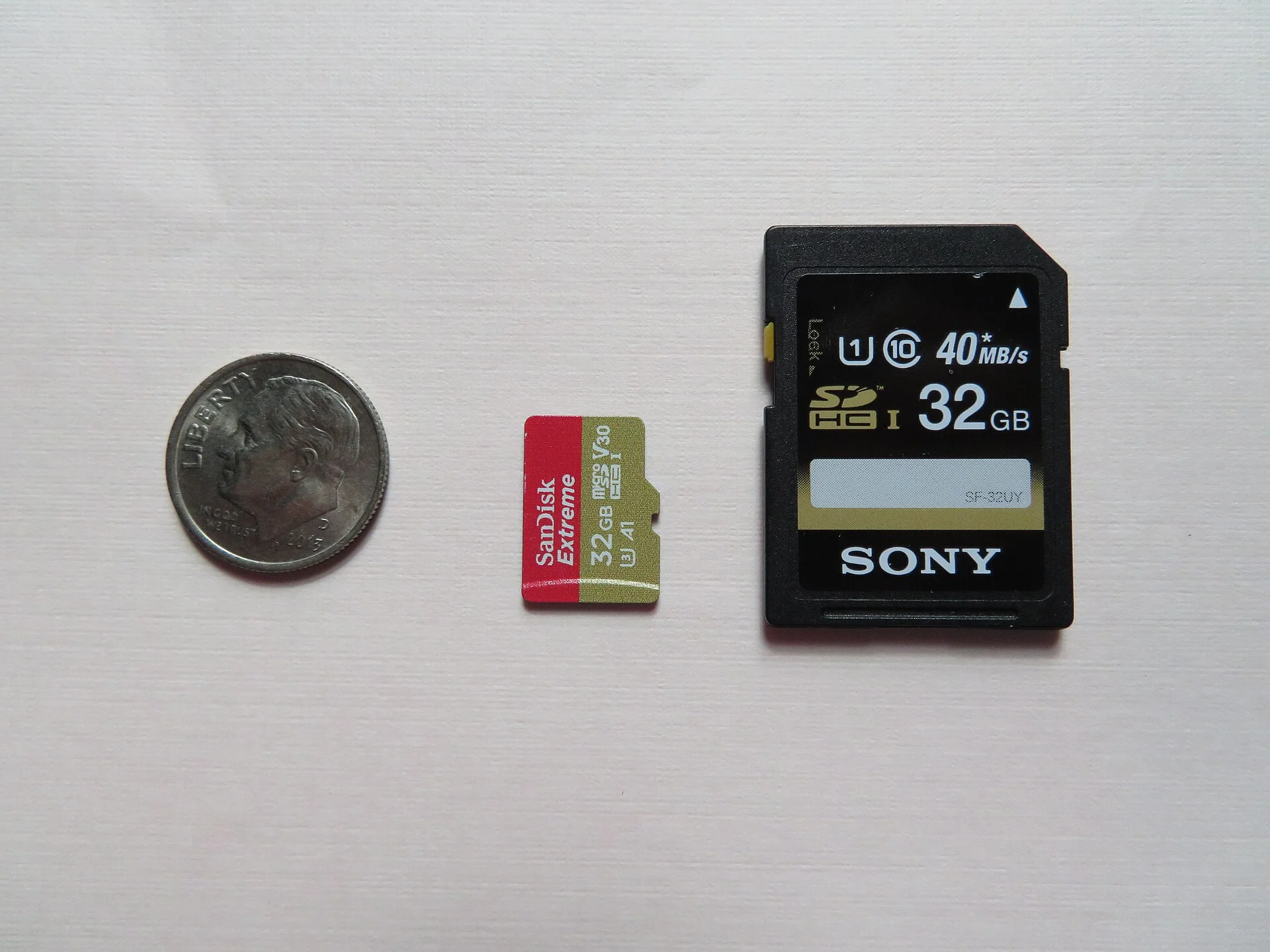
- An unsupported capacity — many older cameras top out at 32GB, so a 64GB or 128GB card is more space than they can address, and they error.
- Stale firmware that misreads a perfectly good card as defective.
- A physical issue — a loose card, dirty contacts, or that tiny lock switch flipped to locked.
The useful thing about this list is that it sorts neatly by effort. Causes four and five are free and instant. Cause two and three are a five-minute reformat or a different card. Cause one is the only one that ends in a purchase — and even then, it's a cheap, expected purchase, because a dashcam card is a consumable, not a permanent part. The rest of this guide simply walks that ladder from the cheapest rung up.
First, the 60-second fixes: power-cycle, reseat, and the lock switch
Before you format anything or buy anything, rule out the embarrassing causes — the ones that take under a minute and fix a surprising number of cases. Recovery guides and dashcam makers all lead with these because they cost nothing and occasionally make the whole problem vanish.
Power-cycle the camera. Turn it fully off, wait a few seconds, and turn it back on. A transient read glitch on startup can throw a one-time error that a clean restart clears. Reseat the card. Power down, push the microSD in until it clicks and pop it out, then seat it firmly again. Vibration in a moving vehicle can work a card a hair loose over time, and a partial contact reads exactly like a failing card. While the card is out, look at the gold contacts; if they're dusty or smudged, wipe them gently with a dry cloth or a pencil eraser and reseat.
Check the lock switch. If you're running the microSD in a full-size SD adapter — or your camera takes a full-size card — there's a tiny write-protect slider on the side. Flipped to lock, it makes the card read-only, and a read-only card cannot accept new video, which the camera reports as an error. Slide it back toward the contacts (unlocked) and reseat. Finally, test a known-good card if you have one. Pop in any other working microSD for a minute. If the error disappears, the problem is the card, not the camera. If it follows you to the second card, the camera's slot or firmware is the suspect — a useful split that tells you whether to read the next section or skip toward the firmware fix.
The real fix for most cards: format it inside the dashcam, not on your computer
If the quick fixes didn't stick, a proper format resolves the majority of recurring card errors — but where you format matters more than most people realize. The single most important habit here is to format the card in the dashcam's own menu, not by right-clicking it in Windows or dragging it to the trash on a Mac.
Back up anything you care about before you format — formatting erases the entire card, and recovering footage afterward is unreliable, so copy that incident clip to a computer first.
The reason is structural. When the camera formats its own card, the firmware writes the exact file structure it uses for loop recording — the fixed-size clip layout it expects to overwrite cleanly. A computer format writes a generic structure that the camera then has to adapt to, which leaves room for the fragmentation and file-table quirks that produce false errors a week later. Formatting in-camera also automatically picks a file system the camera supports, sidestepping the FAT32-versus-exFAT guesswork entirely. Dig into your camera's settings menu, find Format or Format SD Card, and run it there.
Two cautions. First, back up anything you care about before you format — formatting erases the entire card, and recovering footage afterward is unreliable, so copy that incident clip or scenic drive to a computer first. Second, treat formatting as routine maintenance, not just emergency repair. Manufacturers commonly suggest reformatting in-camera every one to three months — monthly if you drive daily — precisely because accumulated wear and fragmentation gradually corrupt the file table and trigger the very error you're fighting. A card that's reformatted on a schedule throws far fewer surprise errors than one left untouched for a year. If a fresh in-camera format silences the message, you're done; if the error returns within days, the card is telling you something the next sections explain.
One practical note on what to expect after the format. A healthy card should come up clean and stay quiet for weeks; an in-camera format that appears to succeed but then errors again on the very next drive is one of the clearest signals that the card itself is failing rather than just fragmented. Keep a mental log of how quickly the error comes back after each format — if the interval is shrinking from months to weeks to days, you're watching a card die in real time, and no amount of reformatting will reverse that trend.
FAT32 vs exFAT and the capacity trap that quietly triggers the error
When a brand-new card errors the moment you install it — or an old one errors right after a computer format — the cause is usually a mismatch between the card and what the camera can read. Two settings drive almost all of these cases: the file system and the capacity.
File system. Most dashcams understand two formats, FAT32 and exFAT, and the dividing line is 32GB. The common, camera-friendly rule is: use FAT32 for cards 32GB and smaller (the SDHC class), and exFAT for cards larger than 32GB (the SDXC class). If a 64GB card got formatted as FAT32 on a PC, or a card arrives in some other format like NTFS, the camera may see a structure it can't parse and demand a format. This is exactly why the in-camera format from the previous section works so reliably — it chooses the right file system for you. If you must format on a computer, match the file system to the capacity using that 32GB rule, then do a final format in the camera.
Capacity. This is the trap that catches people who 'upgraded' to a bigger card. Plenty of older dashcams only recognize cards up to 32GB; many current models go to 128GB or 256GB, but not all. Put a 128GB card in a camera that maxes out at 32GB and it simply can't address the space, so it errors no matter how you format it. Check your camera's manual or specs for its maximum supported capacity and stay at or under it. If you're unsure whether your existing card was even appropriate for a dashcam in the first place, our guide on how to choose the right SD card for your dash cam walks through capacity, class, and endurance together — and it's worth a read before you buy a replacement, because the wrong card is the reason many people end up back at this error in a few months.
When the card is simply worn out: why dashcam cards die and how to tell
If you've reseated, formatted in-camera, and confirmed the file system and capacity are right, and the error still comes back, the most likely answer is the least satisfying: the card is worn out. This is not a defect and not your fault — it's physics. A dashcam is the harshest job a memory card can have.
Here's why. Every other use of an SD card is occasional — a few photos, a song, a document. A dashcam writes video continuously the entire time the engine runs, and when the card fills, it loops back and overwrites the oldest footage, then overwrites it again, endlessly. Flash memory cells tolerate only a finite number of write-and-erase cycles before they stop holding data reliably, and a dashcam burns through those cycles faster than any normal use. A standard consumer card under this load can start failing within months. If you've ever wondered how long dashcam memory cards last, the honest answer is that it depends almost entirely on the card grade and how many hours a day you drive — and that the underlying memory card write cycles are the clock ticking down on every card.
The tells of a worn card are consistent: constant or returning 'card error' messages even after a fresh format, clips that are corrupted or won't play back, the camera freezing or rebooting mid-drive, or the card going read-only so no new files appear at all. A Windows CHKDSK scan or a card-maker's repair utility can sometimes patch the file table and mark bad sectors so the camera reads it again — but treat that as a short reprieve, not a cure. Once a card is showing wear, it has entered the failure phase, and the only durable fix is replacement. The upside: dashcam cards are cheap, and the right replacement, covered next, lasts far longer than the one that just died.
High-endurance vs. regular cards: the upgrade that ends recurring errors
If your card wore out, the single most effective thing you can do is replace it with the right kind of card — because a huge share of recurring dashcam errors trace back to using an ordinary consumer card for a job that demands a specialized one. The category you want is high-endurance.
The difference is in the silicon. Standard, low-cost cards typically use QLC NAND flash, which packs in cheap capacity but tolerates relatively few write cycles. High-endurance cards use higher-grade NAND — MLC or premium TLC — paired with smarter controllers that do wear-leveling (spreading writes evenly so no single cell dies early), error correction, and health monitoring. The practical result is that a high-endurance card is rated to survive on the order of ten times more write cycles than a standard card under the same continuous-recording load. For the one device that overwrites its storage all day, every day, that is the entire ballgame. People who burn through ordinary cards in a single season often run the same camera for years on a high-endurance card.
Endurance isn't the only spec. For smooth recording you also need enough sustained write speed: a U3 and/or V30 rating, which guarantees at least 30 MB/s, is the floor for 1080p, 2K, and 4K dashcams. A card too slow to keep up drops frames and can throw write errors that look exactly like card failure. So the replacement target is straightforward: a high-endurance microSD, rated U3/V30, at a capacity your camera supports. If you're shopping for a high-resolution camera, our pick of the best memory card for 4K recording lines up endurance and speed for that demand; and if you were tempted to reuse a spare card from a drawer, it's worth understanding first whether you can safely use a regular SD card in your dashcam — the short answer is that you can, but it's usually why you're reading this article.
Firmware, contacts, and counterfeit cards: the overlooked culprits
Most card errors are solved by the steps above, but a stubborn minority come from three causes people rarely check — and each is worth ruling out before you give up on an otherwise-good camera.
- Outdated firmware misreading a healthy card as defective — a known card-detection bug that updates routinely fix.
- Counterfeit or fake-capacity cards that physically hold far less than they advertise, then error once recording wraps past the real limit.
- The simple physical layer — dirty or oxidized contacts, a card that never fully clicks into a worn slot, or extreme cabin heat surfacing as intermittent errors.
Outdated firmware. A dashcam's firmware is the software that decides whether a card is healthy, and an old version can be flat-out wrong about it — misreading a perfectly good card as defective and demanding a format on a loop. Firmware updates frequently fix exactly this kind of card-detection bug and often add support for larger capacities the camera couldn't handle before. Check the manufacturer's website for your exact model, follow their update procedure (it usually involves copying a file to the card and powering on), and re-test. This is especially worth doing if a known-good card threw the same error earlier — that pointed at the camera, and firmware is the camera's most common fixable fault.
Counterfeit or fake-capacity cards. This one bites people who bought a suspiciously cheap 'high-capacity' card online. A fake card advertises, say, 128GB but physically holds far less; it appears to work at first, then errors and corrupts the moment loop recording wraps past the real capacity. If a card was cheap, off-brand, or from an unfamiliar seller, suspect it — buy replacements from reputable retailers and stick to known card brands. And don't forget the simple physical layer: dirty or oxidized gold contacts, a card that never fully clicks into a worn slot, or extreme heat in a sun-baked cabin can all surface as intermittent errors. A gentle contact clean, a firm reseat, and a little patience with the slot occasionally fix what looks like a dying card. Heat deserves its own mention: a card baking in a windshield-mounted camera through a summer afternoon runs far hotter than it would in a phone, and sustained high temperatures accelerate wear and cause intermittent read failures that clear once the cabin cools — another reason a high-endurance card, built to tolerate wider temperature swings, pays off in a dashcam. Because dashcam errors so often cluster with power problems, it's also worth knowing why your dashcam keeps turning off — an unstable power feed can interrupt a write mid-clip and leave behind the corrupted files that trigger the next error.
Your step-by-step troubleshooting flow and the bottom line
Put it all together and the fix becomes a simple ladder you climb until the error stops. Run it in this order, because it goes from free and instant to a small, permanent purchase, and most people stop well before the last rung.
- 1. Power-cycle the camera and re-test.
- 2. Reseat the card, clean the gold contacts, and confirm the lock switch is unlocked.
- 3. Test a known-good card to split the problem between card and camera.
- 4. Back up your footage, then format the card in the dashcam's own menu (not on a computer).
- 5. Check the file system and capacity — FAT32 at or under 32GB, exFAT above, and never exceed your camera's max supported size.
- 6. Update the camera firmware if a good card still errors.
- 7. Replace the card with a high-endurance, U3/V30 card if the error keeps returning after all of the above.
Here's the bottom line. A dashcam SD card error is almost never the end of the camera — it's the card asking for attention. For a brand-new card or a fresh computer format, the cause is usually a file-system or capacity mismatch that an in-camera format cures in minutes. For a card that's been recording for months, the cause is usually wear, and the cure is a high-endurance replacement that won't be back in your hands a season later. Either way, don't ignore the message: a dashcam that can't write is a dashcam that isn't protecting you, and the only footage worse than shaky footage is no footage at all. Spend the ten minutes — or the few dollars — and get it recording again before the drive you'll wish you had on file.