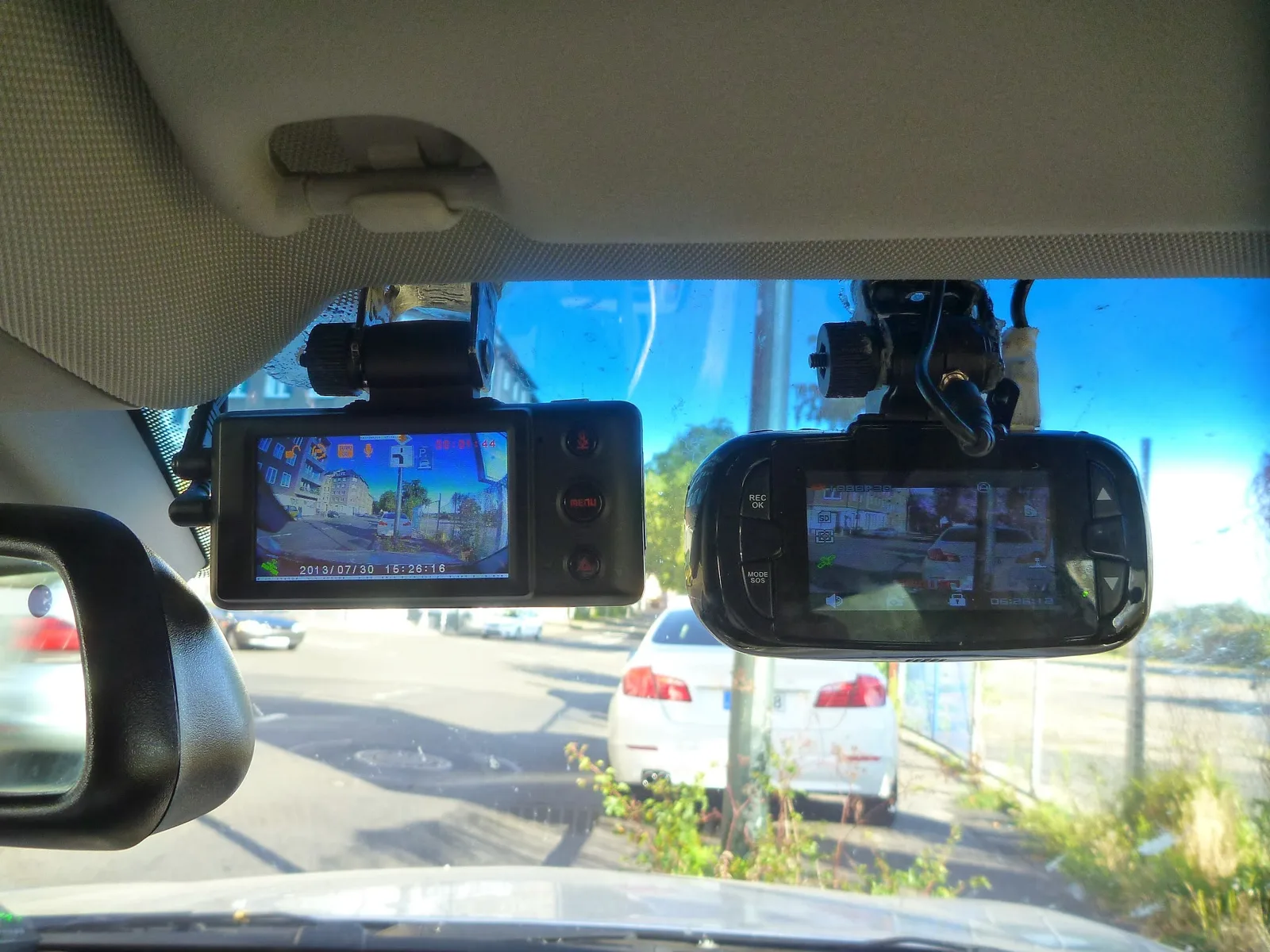
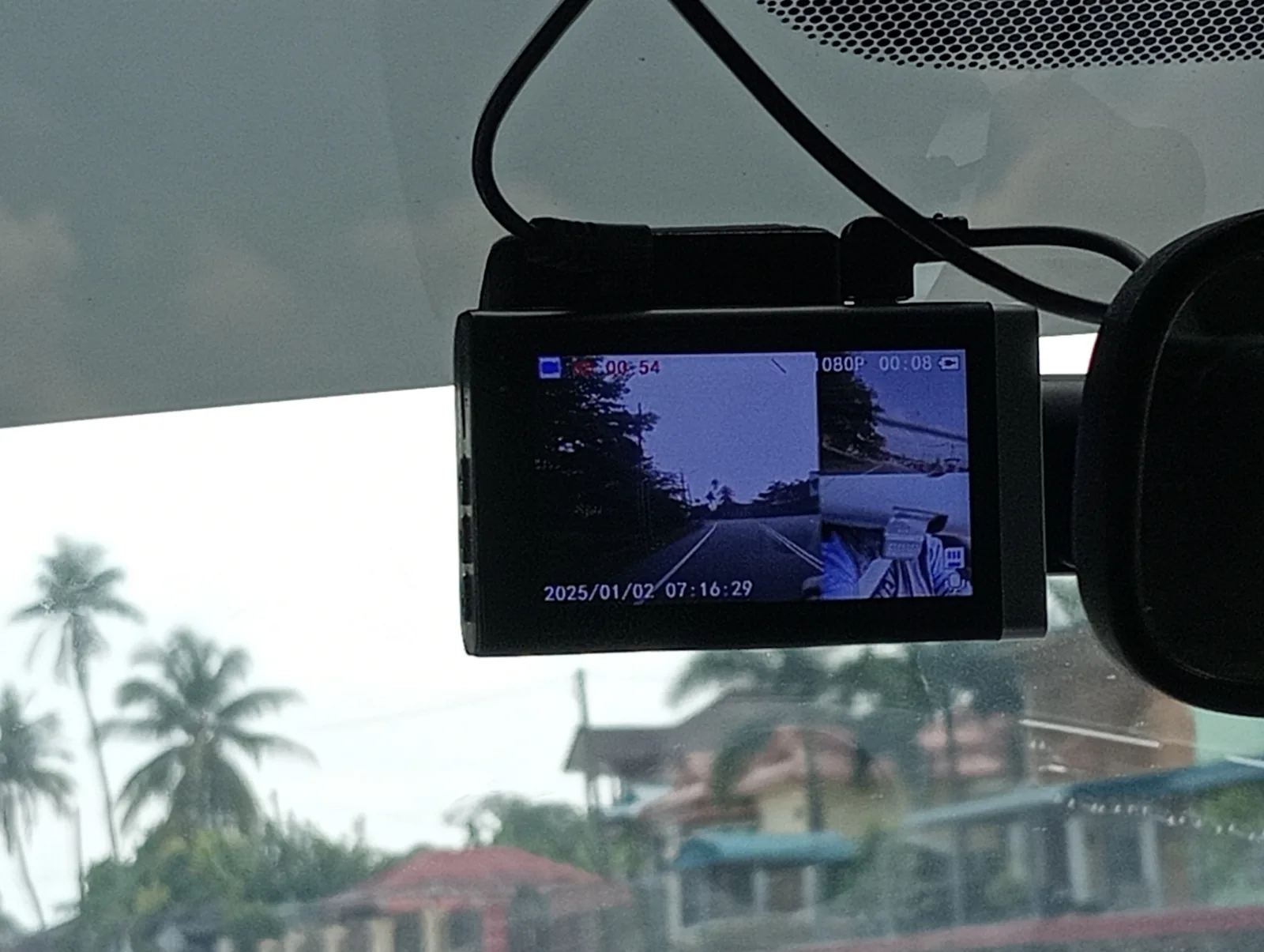
A dashcam that forgets the time isn't broken — its clock just lost power
You pull up a clip to settle a fender-bender or report a bad driver, and the timestamp says it happened on January 1st, 2020, at midnight. Or you set the time on your dashcam, drive for a week, and find it has drifted back to some default date again. It feels like the camera is failing — how can a recording device not even keep a clock?
In almost every case, the camera is fine. A dashcam keeps time with a tiny internal clock that needs a trickle of power to keep ticking when the car is off and the cam is unplugged. On a lot of modern dashcams — especially the popular supercapacitor models — that power reserve only lasts minutes, not days. Lose power long enough and the clock resets to a factory default. The camera didn't break; its clock simply ran out of the small amount of power it needs to remember what time it is.
The reason this confuses people is that two different things are tangled together. One is keeping the time across a power-off (the internal clock and its reserve). The other is setting the time correctly in the first place (manually, or automatically from GPS). When either one breaks down, you see the same symptom — a wrong or reset date — but the fix is completely different.
The good news is that this is one of the more solvable dashcam problems once you know which half you're dealing with. If your cam has GPS, it can re-set its own clock from satellites every drive, so a reset barely matters. If it doesn't, the answer is usually how it's powered. This guide explains how a dashcam actually tells time, why supercapacitor cams forget it so readily, the time-zone trap that makes a perfectly synced clock still read wrong, and the concrete steps to make the date stick.
One honesty note up front: this is not a bench test of a specific camera. What follows is how dashcam timekeeping, GPS time sync, and the power-reserve hardware actually work, drawn from well-documented electronics and GPS behavior — so you can read your own symptom and fix the right thing instead of returning a camera that was never broken.
How a dashcam actually keeps time (and why it needs its own power)
Every dashcam contains a small real-time clock — the same kind of circuit that keeps the clock running in a PC, a microwave, or a wall clock. It's a low-power counter that just keeps incrementing the seconds. The catch is that it needs power to count. The moment it loses power entirely, it stops, and when power returns it has no idea how much time passed, so it boots from whatever default the firmware holds — very often January 1st of some year, or the date the firmware was built.
A desktop PC solves this with a coin-cell battery on the motherboard that keeps the clock alive for years with the machine unplugged. A dashcam is too small and too cost-sensitive for that, so it uses whatever on-board energy store it already has — and that store was designed for a different job. The on-board cell exists mainly so the cam can finish saving the current video clip after power is cut, and (on some models) run parking mode. Keeping the clock alive is a secondary duty it performs only as long as that reserve has charge.
The whole root cause in one sentence: the dashcam's power reserve is sized to close a video file, not to keep a clock running for days.
So whether your time survives a power-off comes down to how big that reserve is and how long the cam stays unpowered. A cam unplugged overnight, or one on a 12V socket that dies the instant you switch off the engine, runs that reserve flat and forgets the time. A cam that keeps a trickle of power, or that re-sets its clock from GPS, never shows you the problem.
This also explains the tell-tale default date. If your cam keeps snapping back to the exact same date — a January 1st, or an oddly specific day a year or two in the past — that's the firmware's built-in starting point, the value it loads when the clock has no memory to fall back on. Seeing the same default every time is confirmation that the clock is losing power, not that the camera is malfunctioning.
Why supercapacitor cams forget the time (and battery cams sometimes don't)
Here's the part that surprises people: the better, more heat-tolerant dashcam is often the one that forgets the time fastest. That's because of the kind of power reserve inside it, and it's worth understanding because it tells you whether your reset is normal for your hardware.
Supercapacitor cams. Premium and hot-climate dashcams — many Viofo, BlackVue, and Thinkware models — use a supercapacitor instead of a battery, because it tolerates heat far better and won't swell or catch fire. The trade-off is that a supercapacitor stores very little energy: enough to safely close the last file, and that is about it. Once the car is off, that charge bleeds away in minutes, the clock loses power, and the time resets. For a supercapacitor cam, forgetting the time when it sits unplugged isn't a defect — it's an inherent consequence of the very design choice that makes it survive a hot windshield.
Battery cams. Budget and mid-range dashcams often use a small lithium-ion battery, which stores far more energy than a supercapacitor. That larger reserve can keep the clock alive for hours or sometimes a day or two after the car is off, so a battery cam may seem to 'remember' the time better — right up until the battery ages. A lithium cell loses capacity over time, and heat accelerates it, so a two-year-old battery cam that used to hold the time may start resetting as its cell wears out. A visibly swollen or puffy battery is heat damage and the cam should be retired; our look at dashcam power cells and batteries covers the trade-offs.
So the cell type sets your expectation. A supercapacitor cam will almost always need GPS or constant power to hold the time — that's normal. A battery cam that suddenly starts resetting after a couple of years is likely telling you its battery is fading. Neither means the camera as a whole is broken; both point you straight at the fix.
GPS is the real timekeeper on a modern dashcam
If your dashcam has GPS, the clock-reset problem largely solves itself, and understanding why is the single most useful thing in this guide. GPS satellites don't just broadcast position — each one carries an atomic clock and broadcasts extremely precise time. A GPS-equipped dashcam uses that signal to set its own clock automatically every time it gets a fix. So even if the cam booted up thinking it was January 1st, the moment it locks onto satellites — usually within a minute or two of starting to drive with a clear view of the sky — it quietly corrects the time to the second.
That's why on a healthy GPS cam, a reset clock is a non-event. It might show the wrong time for the first thirty seconds of a drive, then snap to correct and stay correct. The timestamp burned into your footage ends up right because GPS fixed it before anything important was recorded. If that's your situation, you may not have a problem worth chasing at all.
The flip side is the important diagnostic: if a GPS cam keeps showing the wrong date, the real issue is usually that the GPS itself isn't working, not the clock. No fix means no time sync, so the cam stays stuck on its default. Several things can starve the cam of a fix:
- a loose GPS mount
- a metallic or heavily tinted windshield strip
- a heated-glass windshield
- a damaged antenna
If your time never auto-corrects, treat it as a GPS-reception problem first — our guide to a dashcam GPS that won't get a signal walks through that, and how GPS works in a dashcam explains the mechanism in depth.
This is also the strongest argument for buying a GPS model if you're shopping. A dash cam with GPS not only stamps your footage with speed and location for incident evidence, it makes the whole clock-reset issue disappear, because the camera no longer relies on its own fragile power reserve to know what time it is. See our roundup of the best dashcams with GPS if that's the route you take.
The time-zone and daylight-saving trap (synced but still wrong)
Here's a twist that fools a lot of people: your dashcam can be syncing perfectly from GPS and still show the wrong time. If the clock is off by a clean number of whole hours — not random, but exactly five, six, or seven hours out — you don't have a reset problem at all. You have a time-zone setting problem.
The reason is that GPS broadcasts time in UTC (Coordinated Universal Time, essentially the old GMT), the single global reference. It does not know or care which time zone you're standing in. So a GPS dashcam sets its internal clock to UTC and then applies the time-zone offset you configured in its menu to display your local time. If that offset is wrong, missing, or got wiped when the clock reset, the cam faithfully shows you UTC or some other zone — correct to the second, just for the wrong part of the world.
Daylight saving time is the same trap one layer down. Most dashcams don't adjust for DST automatically, so twice a year your timestamp can drift an hour out of step even though nothing else changed. If your time was perfect and suddenly sits exactly one hour off around March or November, that's DST, not a fault — you just need to bump the offset or flip the cam's DST toggle if it has one.
The way to tell these apart from a true reset is the shape of the error. Tell them apart by the shape of the error:
- A genuine clock reset throws you back to a default date (January 1st, a year in the past) — the date itself is wildly wrong.
- A time-zone or DST error keeps today's date and is off by a tidy whole number of hours.
If you're seeing the latter, skip everything about power and batteries: just set your UTC offset and DST correctly in the menu, and the displayed time will be right while GPS keeps it accurate.
How the camera is powered decides whether the time survives
For a cam without GPS, whether the time sticks comes down almost entirely to one thing: does the camera ever get a trickle of power while the car is parked? If it goes completely dark every time you switch off, its little power reserve drains and the clock forgets. If it keeps even a small constant feed, the clock keeps ticking. So the way the cam is wired is often the real lever.
- The 12V cigarette/accessory socket. The most common setup, and the most common cause of resets. On many vehicles that socket is switched — it only has power when the ignition is on — so the cam loses all power the instant you park. On a supercapacitor cam, that means a guaranteed time reset by the next morning. Some cars have an 'always-on' socket that stays live with the engine off; plugging into one of those can keep the clock alive, though it can also slowly drain your starter battery, so use it carefully.
- A hardwire kit. A dash cam hardwire kit taps your fuse box and includes a low-voltage cutoff that keeps the cam fed for parking mode while protecting your battery. A hardwired cam keeps a power path alive far longer, which is why hardwired installs rarely lose the time. This is the cleanest fix for a non-GPS cam that resets every night.
- USB from a powered port. If your cam runs off a USB port that stays live with the car off, the clock can survive on that too — same idea as the always-on socket.
There's one important look-alike to rule out here. If your cam goes dark on long parks regardless of how it's wired, you may be chasing a power-delivery fault rather than a clock issue — our guide to a dashcam that keeps turning off covers that. But if the symptom is specifically that the cam runs fine yet forgets the date after a park, the power-path-to-the-clock is what you're after, and a hardwire kit or an always-on feed is usually the durable answer.
When it's the firmware or a corrupt settings file
If the camera is resetting everything — not just the time, but your resolution, parking-mode, and other preferences too — you're probably not looking at a power-reserve problem. You're looking at the cam failing to save or read its settings, and there are two usual culprits.
A corrupt configuration file on the SD card. Most dashcams store their settings in a small config file on the memory card. If that file gets corrupted — often because the card itself is failing or was never a proper high-endurance card — the cam can't read its saved preferences and falls back to defaults on every boot, including the default date.
The fix is to back up your clips, reformat the card in the camera (not on a computer), and re-enter your settings; if it returns, the card is suspect. Our guides to dashcam SD card requirements and the SD card error that keeps popping up cover choosing and clearing a card that won't behave. A high-endurance microSD card is built for the constant rewriting a dashcam does and is far less likely to corrupt.
Buggy or outdated firmware. Some firmware versions have genuine clock-handling bugs — the time fails to save, or resets after every restart even with good power. Manufacturers fix these in updates, so checking for and installing the latest firmware for your exact model is worth doing if the basics check out. Two cautions: a firmware update itself usually resets the clock, so always re-set the time and time zone immediately after updating; and only ever flash the firmware built for your specific model, since the wrong file can brick the camera.
The quick way to sort this from a power issue: if only the time resets, suspect the clock's power reserve or GPS. If all your settings reset together, suspect the SD card's config file or the firmware. They look similar on the surface but lead to completely different fixes.
Why a reset timestamp actually matters
It's tempting to shrug off a wrong date — the video still records, after all. But the timestamp is a big part of what makes dashcam footage useful, and a reset clock can quietly undercut the whole reason you mounted the camera.
The most important case is an incident. If you're using footage to support an insurance claim or in a dispute, the date and time stamped on the video are part of what makes it credible evidence.
A clip that claims to have happened on January 1st, 2020 invites doubt about whether it's even from the event in question.
Insurers and courts lean on a coherent timeline, and a nonsense timestamp is an easy thing for the other side to poke at. A correct, GPS-synced time and date — ideally with location and speed alongside it — does the opposite: it corroborates exactly when and where something happened.
There's a practical, everyday cost too. When you go looking for a specific clip — the moment someone dinged your door, a scenic stretch of a road trip — you find it by date and time. If every file is stamped with the same wrong default, your footage becomes a haystack with no way to sort it. Loop recording overwrites old clips automatically, and a broken clock makes it much harder to know what you're about to lose.
None of this means a reset clock is a crisis — it means it's worth the ten minutes to fix properly rather than living with it. The footage you're recording every day is only as valuable as your ability to trust and find it later, and the timestamp is the thread that ties it all together.
Step by step: make the time and date stick
Work these in order. Most people stop the resets within the first few steps once they've matched the cause to the cure.
- Confirm what's actually resetting. Only the time and date? Suspect the clock's power reserve or GPS. Every setting? Jump to the SD card and firmware steps below.
- Set the time zone and DST correctly first. If the date is right but the time is off by a clean number of hours, you don't have a reset — set your UTC offset (and the DST toggle, if present) and you're done.
- Check whether GPS is getting a fix. On a GPS cam, drive a few minutes with a clear sky and watch whether the time self-corrects. If it never does, fix the GPS reception — that, not the clock, is your real problem.
- Change how it's powered. For a non-GPS cam that resets every night, give the clock a power path: hardwire it with a low-voltage-cutoff kit, or move to an always-on 12V/USB feed so the reserve never fully drains.
- Reformat the SD card in the camera. If all settings reset, back up your clips and reformat the card in the cam to clear a corrupt config file; if it returns, replace the card with a high-endurance one.
- Update the firmware. Install the latest firmware for your exact model to clear known clock bugs — then immediately re-set the time and time zone, since updating resets the clock.
- Re-set the time and let it settle. After any fix, set the time once, power-cycle the car, and confirm it holds. On a GPS cam, verify it auto-corrects on the next drive.
If you've worked the list and a non-GPS cam still loses the time on every park, that's the hardware reality of a tiny power reserve — the durable answer is either a hardwire feed or a GPS model that re-sets itself. Either one ends the problem for good rather than asking you to re-enter the date every week.
Quick reference: match your symptom to the fix
Once you know the time-reset has only a few possible causes, diagnosing yours is a short lookup. Find the row that matches and start with the fix beside it:
| What you're seeing | Most likely fix |
|---|---|
| Resets to Jan 1 / an old default date after every park | Clock's power reserve drains — add GPS or a hardwire/always-on power feed. |
| GPS cam, but date stays stuck and never self-corrects | GPS isn't getting a fix — fix reception/antenna, not the clock. |
| Date is right, time off by exactly a few whole hours | Time-zone offset wrong — set your UTC offset in the menu. |
| Suddenly one hour off in spring/fall | Daylight saving — adjust the offset or DST toggle. |
| Older battery cam that used to hold the time, now resets | Battery is aging — check for swelling; hardwire or replace. |
| Every setting resets, not just the time | Corrupt config file — reformat the card in the cam; update firmware. |
| Resets after every restart even on good power | Firmware bug — update to the latest version for your model. |
Run it top to bottom and most people land in the first three rows. The table is short because the clock has only a handful of inputs — the power reserve, the GPS fix, and the time-zone setting — so there's no hidden cause to chase, just a question of which one applies to you.
And unlike an intermittent wiring fault, a timekeeping fix tends to stay fixed: give the clock a reliable power path or a GPS sync, set the zone once, and the cam simply stops forgetting the date. You set it up right one time and stop thinking about it.
Set the clock up right once, and it stops forgetting
A dashcam that keeps resetting its time and date looks like a broken camera, but it almost never is. The clock is a low-power counter that needs a trickle of energy to keep ticking, and on most modern cams — supercapacitor models especially — that reserve only lasts minutes after the car is off. Lose power long enough and the clock reverts to a factory default. That's physics, not a fault.
So fix the right half of the problem. If your cam has GPS, the clock re-sets itself from satellites every drive — so a reset that keeps coming back usually means the GPS isn't getting a fix, and that's what to chase. If the time is merely off by a clean number of hours, it's a time-zone or daylight-saving setting, not a reset at all. And if a non-GPS cam forgets the date every night, give its clock a power path: a hardwire kit or an always-on feed keeps the reserve from ever draining flat.
Save the deeper steps for when they fit the symptom. If every setting resets together, suspect a corrupt config file on a failing SD card or a firmware bug — reformat the card in the camera and update to the latest firmware for your exact model, then re-set the clock afterward. And if an older battery cam that used to hold the time has started losing it, its cell is simply wearing out.
The reason it's worth the ten minutes is that the timestamp is what makes your footage trustworthy and findable — for an insurance claim, a dispute, or just locating the right clip. The simplest durable answer for most people is a GPS dashcam, which makes the whole problem vanish because the camera no longer depends on its own fragile reserve to know what time it is. Set it up right once, and it records the correct date all year.