
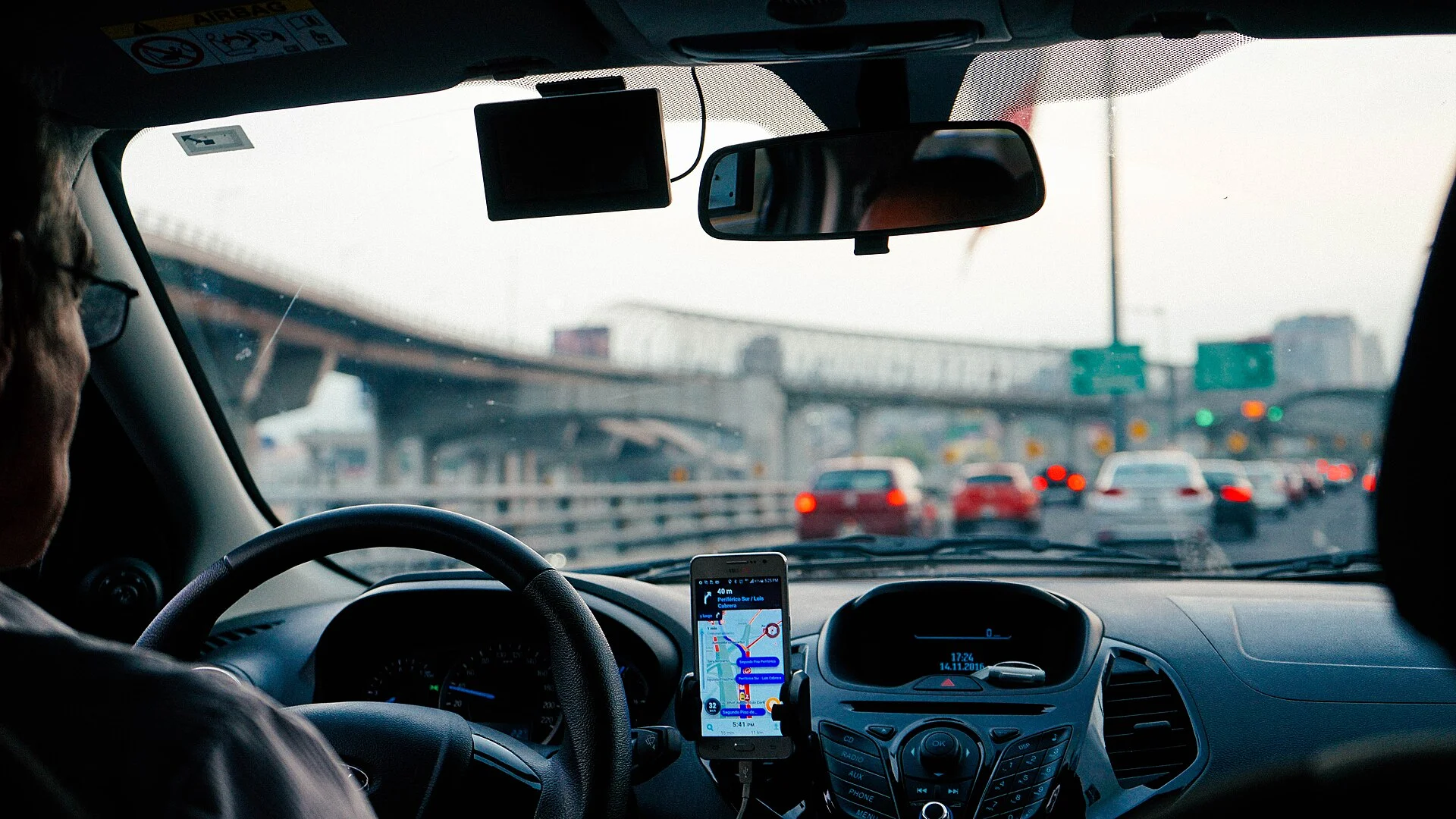
Your dashcam is its own Wi-Fi network
The single biggest source of dashcam app frustration is a misunderstanding of how the Wi-Fi actually works. A dashcam does not join your home Wi-Fi or your car's hotspot to talk to the app. Instead, the camera broadcasts its own private Wi-Fi network — a small access point with its own name and password — and your phone connects directly to that. The app then reaches the camera over that link to show a live view, change settings, and pull clips off the memory card.
That design has one important consequence: the camera's network has no internet. It is a closed link between two devices, nothing more. Your phone, which expects every Wi-Fi network to provide internet, often treats that as a problem and quietly works around it — and that workaround is the reason a great many of these connections fail or drop seconds after they start.
The encouraging part is that a dashcam that refuses to connect is almost never broken. The radio inside it is fine. The connection breaks for a short, predictable list of reasons: you joined the wrong network, your phone abandoned the no-internet one, the app is missing a permission it needs, a privacy feature is masking your phone, or the two devices simply aren't on the same Wi-Fi band. Every one of those is a setting you can change in a couple of minutes.
This guide walks the connection from your phone outward, in the order that finds the fault fastest. We start with the phone-side settings that block the most connections, then move to the band, the single-client limit, and finally the camera itself. Work it top to bottom and you'll almost always have the live view back without touching a wire or buying anything.
It helps to keep the whole chain in mind as you go. Your phone has to be on the camera's network, willing to stay there, allowed by its own permissions to talk to the camera, presenting a stable identity, on a band both devices share, and holding the one connection slot the camera offers — while the camera itself has to be awake, cool, running good storage, and actually broadcasting. A break anywhere in that chain looks identical from the app's side: a spinner that never resolves. Naming which link is broken is the whole job.
The short list of why the app won't connect
Before you start changing settings at random, it helps to know the whole field. Nearly every dashcam Wi-Fi failure traces to one of these, and naming yours tells you where to begin:
- Wrong network. The phone is on home or car Wi-Fi, or mobile data, instead of the camera's own hotspot.
- Phone won't stay on a no-internet network. Android and iPhone detect 'no internet' and switch back to cellular, dropping the camera.
- Missing app permission. Android needs Location to join a named Wi-Fi; iPhone needs Local Network to reach the camera.
- Private / random Wi-Fi address. A rotating MAC address masks your phone from a camera that expects a known device.
- Band mismatch. The camera is on 5 GHz and the phone or distance can't hold it, or vice versa.
- Single-client limit. Another phone — or a backgrounded app on one — already owns the one connection the camera allows.
- Camera-side state. Wi-Fi is off, timed out, in a recording-only mode, or the camera is hot, asleep, or running a bad memory card.
Notice what is not on that list: 'the camera is dead.' A unit that connected once and then refused has almost certainly hit one of the settings above, not a hardware failure. The sections that follow take them roughly in order of how often they're the culprit, so you can stop as soon as the live view returns.
Step 1: Join the camera's hotspot, not your home or car Wi-Fi
Start with the mistake that blocks more first-time connections than anything else: connecting to the wrong network. The camera's Wi-Fi is a separate access point with its own name, and your phone has to be on that one. If your phone is still on the house Wi-Fi, the car's built-in hotspot, or plain mobile data, the app has nothing to talk to.
The exact name and password are model-specific. They're printed in the manual, on a sticker, or shown on the camera's own screen when you enable Wi-Fi — and on most cameras you must turn Wi-Fi on first, either with a button or a menu item, before the network even appears. The password is frequently a simple default, and it has to be typed exactly, including any capital letters.
The fastest reliable sequence: enable Wi-Fi on the camera, open your phone's Wi-Fi settings, select the network whose name matches your camera's brand or model, enter the password from the manual, and only then open the app. Opening the app before the phone is on the camera's network is the most common reason it just spins.
One detail trips people up on the very first pairing: some apps want you to scan a QR code on the camera screen, and that scan is what hands the phone the Wi-Fi name and password automatically. If your app offers a 'scan to connect' step, use it rather than typing the network in by hand — it removes the typo risk entirely and points the app at the right network in one move.
Step 2: Stop your phone from leaving the no-internet network
This is the fix that resolves the maddening case where the app connects for a few seconds and then drops. Because the camera's Wi-Fi carries no internet, your phone notices, decides the network is 'broken,' and silently switches back to mobile data — taking the app's connection with it. Both major phone systems do this, and both let you turn it off.
On Android, the behavior hides under a couple of names depending on the brand:
- Open Settings → Network & internet → Internet (or Wi-Fi).
- Look for Switch to mobile data automatically, Smart network switch, or Adaptive Wi-Fi, and turn it OFF.
- When you connect to the camera and Android asks 'this network has no internet, stay connected?', choose Yes / Always so it stops asking and stops bailing.
On iPhone, the equivalent is Wi-Fi Assist, which falls back to cellular when Wi-Fi looks weak or dead. Go to Settings → Cellular, scroll to the bottom, and switch Wi-Fi Assist off. While you're in Wi-Fi settings, make sure the camera's network isn't set to a low-priority auto-join that the phone abandons the moment something looks wrong.
Once your phone is willing to stay on a network that admits it has no internet, a connection that used to die in five seconds typically holds for the whole session. If yours still drops after this, the cause has moved on to a permission or a privacy setting, which the next steps cover.
Step 3: Give the app the permissions it actually needs
A permission the app is missing will stop a connection cold, and the reasons are not obvious because they look unrelated to Wi-Fi. Modern phone systems gate Wi-Fi and local-device access behind permissions that the dashcam app has to be granted explicitly.
On Android 10 and newer, an app cannot scan for or connect to a specific Wi-Fi network unless it holds Location permission. That sounds odd — the app isn't tracking you — but Wi-Fi scanning can reveal location, so the system ties the two together. Open Settings → Apps → [your dashcam app] → Permissions and allow Location (and on Android 13+, the Nearby devices permission as well). Without it, the app often fails silently or claims it can't find the camera.
On iPhone (iOS 14 and newer), the gate is Local Network permission. The first time the app tries to reach the camera, iOS shows a one-time pop-up asking to allow local network access; if you tapped 'Don't Allow' — or never saw it — the app can't talk to the camera at all. Fix it under Settings → [your dashcam app] and toggle Local Network on. Also confirm Wi-Fi itself is allowed there.
After changing a permission, fully close the app and reopen it so it re-requests access with the new grant in place. A surprising share of 'it just won't connect' reports are nothing more than a Local Network or Location toggle that was never switched on, and flipping it restores the live view immediately.
Step 4: Turn off private or random Wi-Fi address for the camera
Phone privacy features can quietly break a dashcam link, and this one is easy to miss because it's on by default. To stop networks from tracking a device across locations, modern phones present a private (randomized) MAC address — a different hardware ID — to each network. That's good for privacy on public Wi-Fi, but a dashcam that remembers or whitelists a specific device sees a stranger each time and refuses or drops the connection.
The fix is to use your phone's real address for the camera's network only:
- iPhone: Settings → Wi-Fi → tap the (i) next to the camera's network → turn Private Wi-Fi Address OFF, then reconnect.
- Android: Settings → Network & internet → tap the camera's network → Privacy → choose Use device MAC instead of randomized.
This change is scoped to that one network, so it doesn't reduce your privacy anywhere else. After switching to the device's real address, forget the camera's network and rejoin it once so the camera registers the stable ID. On units that pair by remembering a phone, this single toggle is the difference between a connection that sticks and one that's rejected every time — and it's a leading cause of a camera that 'used to work' suddenly refusing after a phone software update turned randomization back on.
Step 5: Clear the slot — only one phone connects at a time
Most dashcams accept exactly one connected phone. The radio is built for a single live viewer, not a household. So if the connection won't establish even though everything above checks out, something may already be holding the one slot the camera offers.
The usual offenders are easy to overlook:
- A family member's phone is still connected to the camera from earlier.
- Your own phone has the app open in the background from a previous session, quietly keeping the link.
- A second device — a tablet, an old phone in the glovebox — auto-joined the camera's network because it remembered the password.
Work through them by disconnecting every other device from the camera's Wi-Fi, force-closing the dashcam app on any phone that has used it, and then connecting fresh from the one phone you want to use. On the phone that keeps failing, swiping the app fully closed — not just backgrounding it — releases a stale session that can block a clean reconnect.
If you genuinely need two people to view the camera, that's a hardware limit rather than a bug: hand the connection off by disconnecting one phone before the other joins. A camera that connects perfectly for one phone but never for a second is behaving exactly as designed, not malfunctioning.
There's a quick way to confirm this is your problem. Turn off Wi-Fi on every device except the one you want to use, then power-cycle the camera so any lingering session on its end is cleared. If the phone connects cleanly once nothing else can be holding the slot, you've proven the single-client limit was the culprit — and the habit to keep is simply force-closing the app when you're done, rather than leaving it backgrounded to claim the slot next time.
Step 6: Match the Wi-Fi band — 2.4 GHz vs 5 GHz
If the network appears but won't fully connect, or connects and then crawls, a band mismatch may be the cause. Dashcams broadcast on one of two Wi-Fi bands, and they behave differently. Many cameras let you choose in the menu; some are fixed.
| Band | Strength | Weakness |
|---|---|---|
| 2.4 GHz | Longer range, reaches through the cabin and to the back of a van or RV | Slower transfers; crowded by other Wi-Fi, Bluetooth, and hotspots |
| 5 GHz | Much faster live preview and file downloads | Short range; a few feet or a seatback can drop it; some older phones can't use it |
Two practical moves follow from that. First, if your phone never even sees the camera's network, the camera may be broadcasting a 5 GHz signal your phone can't receive — check the camera's Wi-Fi menu for a 2.4 / 5 GHz switch and try the other band. Second, if it connects but the live view stutters or downloads stall, you're likely on a weak 5 GHz link; move the phone closer, or switch the camera to 2.4 GHz for a slower but rock-solid connection.
Range matters more than people expect on bigger vehicles. In a long van or an RV, a 5 GHz camera mounted at the windshield can be unreachable from the rear, while 2.4 GHz holds. If you're choosing a camera with that kind of distance in mind, our guide to a dashcam built for RV Wi-Fi range weighs that tradeoff directly.
Step 7: When it's the camera or the firmware, not the phone
If you've cleared every phone-side setting and the camera still won't appear or hold a link, the problem has moved to the camera itself. These checks rule out the hardware-and-software side of the link.
Start with the camera's Wi-Fi state. On many models Wi-Fi is off until you enable it, auto-shuts after an idle timeout to save power, or is simply unavailable while the camera is actively recording — you may need to stop recording or enter a playback / Wi-Fi mode first. A camera that's hot enough to throttle, or asleep in a low-power parking state, also disables its radio, so a unit that won't broadcast on a scorching day may just be protecting itself.
Then address software and storage:
- Firmware. An app updated past the camera's firmware — or the reverse — is a documented cause of dropped pairings. Check the maker's site for a firmware update; many are released specifically to fix Wi-Fi bugs.
- Memory card. A corrupted or unsupported card can make a camera unstable enough that its Wi-Fi service fails to start. Reformat the card in the camera, or fit a fresh high-endurance microSD card rated for continuous recording.
- Factory reset. As a last step, reset the camera to defaults, which clears a stuck Wi-Fi service and any half-finished pairing, then set the network up from scratch.
If a reset and a firmware update both fail and the network never appears under any band, that's the rare case pointing at a genuine hardware fault — the moment to contact the manufacturer under warranty rather than keep tweaking. For app choices and what a well-behaved companion app should offer, our roundup of the best dashcam apps for Android and iPhone is a useful next read.
Quick reference: match the symptom to the fix
Once you know the link is a settings chain rather than a broken camera, troubleshooting is a short lookup. Find your symptom and start with the matching fix:
| What you see | Where to start |
|---|---|
| The camera's network never appears in Wi-Fi | Enable Wi-Fi on the camera; check 2.4 vs 5 GHz band; confirm it isn't recording-only. |
| It connects, then drops after a few seconds | Turn off auto-switch to mobile data (Android) / Wi-Fi Assist (iPhone). |
| The app says it can't find the camera | Grant Location (Android) or Local Network (iPhone) permission to the app. |
| It used to work, now it's rejected every time | Turn off Private / random Wi-Fi address for the camera's network. |
| Won't connect to a second phone | Single-client limit — disconnect the first phone first. |
| Connects but live view crawls or stalls | Weak 5 GHz — move closer or switch the camera to 2.4 GHz. |
| Nothing works after all of the above | Update firmware, reformat the card, factory reset; then suspect hardware. |
Run it top to bottom and most cases resolve in the first four rows, which are all phone-side toggles. The table works because a dashcam link only has a handful of inputs — the right network, a phone willing to stay on it, the app's permissions, a stable address, the band, and the camera's own state — and each symptom maps to one of them. If your camera also drops power or reboots on its own, that's a different fault covered in our guide to a dashcam that keeps turning off.
Reconnecting is a settings fix, not a new camera
A dashcam that won't connect to its app over Wi-Fi feels like a dead camera, but it almost never is. The camera broadcasts its own private, internet-free network, and the connection fails for a few predictable reasons: you're on the wrong network, your phone keeps abandoning the no-internet one, the app is missing a Location or Local Network permission, a private Wi-Fi address is masking your phone, the band doesn't match, or another device is holding the single connection the camera allows.
Work them in that order and you'll find the fault fast. Join the camera's hotspot, tell your phone to stay on a network that has no internet, grant the app the permission it needs, switch off the random Wi-Fi address for that network, clear any other connected phone, and match the band — moving to 2.4 GHz when range or reach is the issue. Only after all of that do firmware, the memory card, and a factory reset come into play, and only after those does genuine hardware failure.
Do that and the live view almost always comes back without a single new part. The handful of cameras that defeat every step are usually telling you the firmware or the card needs attention — or, rarely, that the unit is the one part that failed and the warranty is the next call. The key mindset shift is to stop treating a failed connection as a dead camera and start treating it as a settings chain with one weak link; almost every fix above is a toggle you flip in under a minute, not a part you replace. For choosing a model whose app and Wi-Fi are dependable in the first place, our look at the best dashcams with solid app connectivity points you at the ones that connect without a fight.