
Silent Footage Almost Never Means a Broken Dash Cam
You pull a clip to settle who said what after a fender-bender, and the video is perfect while the audio is dead air. It is a sinking feeling, and the easy conclusion is that the camera failed. It almost certainly did not. The video side and the audio side of a dash cam are two different systems, and the sound goes missing for its own short list of reasons — a muted microphone toggle, a firmware update that flipped audio off, a tired or wrong memory card, or a player on your computer that simply cannot decode the sound the camera saved.
That distinction is the whole game, because it changes what you should do. A camera that records nothing has lost power or storage. A camera that records crisp silent video is getting power and writing files — it just is not capturing (or you are not hearing) the audio track. Chasing fuses and mounts will not help that. The fix lives in the settings menu, the firmware, the SD card, and the playback app instead, and the overwhelming majority of cases resolve there for free.
This guide walks the causes from most to least common, with the cheapest checks first. We start with the one step almost everyone skips — proving the sound is genuinely missing rather than just un-playable — because a clip that was never recorded with audio and a clip whose audio your player cannot read are two different problems with two different answers. Replacing hardware is the last step, and by the time you reach it, most people never need to. If you also care about how good the captured sound is once it works, that is a separate question covered in our look at dash cam audio quality.
First, Confirm It's Really Missing — Not Just Un-Playable
Before you change a single setting, spend two minutes proving which problem you actually have, because half of all 'no audio' reports are not recording faults at all — they are playback faults. The clip has sound; your player just cannot decode it. Skipping this test sends people deep into settings menus chasing a microphone that was working the whole time.
The definitive check is free and takes one minute: open the exact same clip in two different players. Play it in whatever you normally use — the Windows Photos app, QuickTime, the stock viewer — and then play it again in VLC, which bundles its own codecs and reads almost anything a dash cam writes. If VLC has sound and your usual player does not, congratulate yourself: the audio was recorded perfectly and you have a codec problem, not a camera problem. That single test, recommended across dash-cam troubleshooting guides, redirects the entire diagnosis and saves people from 'fixing' a camera that was never broken.
While you are testing, decide which symptom you are really seeing. Every clip silent in every player points at the microphone or the recording settings. Silent in one player but fine in another points at the codec. Audio that cuts in and out, or is present on some clips and gone on others, points at a flaky card, an unstable mic connection, or a power issue. Naming the bucket first is what keeps you from crediting a fix for sound your computer would have played anyway once you opened the right app.
The Number-One Cause: the Microphone Toggle Is Switched Off
If the clip is genuinely silent in every player, start where the money almost always is: the microphone is simply turned off. Most dash cams ship with audio recording enabled by default, but it is one of the easiest settings in the world to disable by accident. Many cameras put a dedicated mute button right on the body, and a single stray press — or a misaligned switch — silences every recording until you press it again. Plenty of owners have hit it reaching for a different control and never noticed.
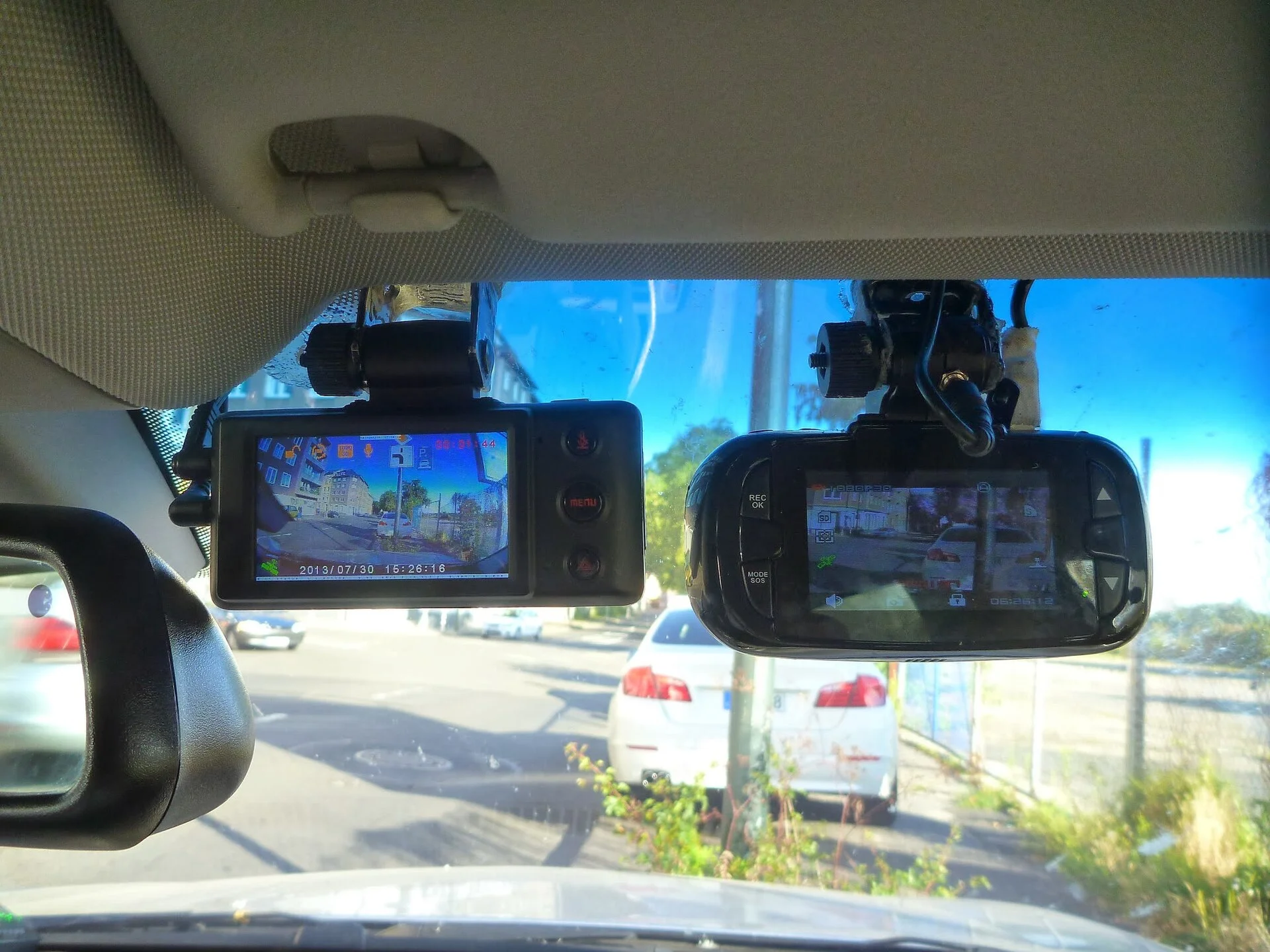
The menu is the other half of this. Brands label the control differently — you are looking for 'Audio Recording', 'Record Audio', 'Microphone', or 'Voice Recording' depending on the maker. Thinkware, for example, documents audio as a straightforward on/off you set in the camera menu or its companion phone app. Open that menu (or the app), find the audio entry, and confirm it is actually enabled. Many cameras also flash a tiny on-screen microphone icon, often with a slash through it when muted; learn to read that icon and a glance tells you the state before you ever pull a clip.
One quiet trap lives here: a factory reset or a firmware update can flip this toggle back to off or to a default you did not choose, so a camera that recorded sound for months can suddenly go silent after an update with no other change. If the toggle looks on but you still get nothing, set it off, save, set it back on, and save again — re-seating the setting clears a surprising number of stuck states before you move on to firmware.
Firmware: Updates That Silence the Mic — and Buggy Ones That Break It
Firmware sits behind a large share of the no-audio cases that survive the toggle check, and it cuts both ways. An update can quietly overwrite your custom settings and switch the microphone back off, so the sound vanishes the day after you 'just updated' even though you never touched the audio menu. The cure there is simple once you know to look: after any firmware update, go back into settings and re-confirm audio recording, because the update may not have preserved it.
The other direction is a genuine firmware bug. Some versions are known to drop the audio track under specific conditions — owner reports describe losing sound only in certain Wi-Fi or app-connection modes, where the camera records fine standalone but mutes when paired to the phone. Manufacturers patch these, which is exactly why updating to the current firmware for your specific model fixes a real slice of complaints. Download the firmware only from the maker's official site, match it to your exact model, and follow their steps to the letter — usually copying a file to the card and letting the camera flash itself. Never interrupt a flash; a half-written update causes worse problems than the one you started with.
Here is the nuance most guides miss: newer is not always better. If your audio broke immediately after an update, the new release may be the culprit, and rolling back to the previous known-good firmware can restore sound while the maker fixes the regression. So the firmware step is really two moves — update if you are behind, roll back if a recent update is what silenced you — and re-enable the microphone afterward either way.
The SD Card Angle: Full, Wrong Type, or Worn Out
The storage card is an underrated audio killer because people assume a card either works or it does not. In practice a card can be healthy enough to keep writing video while quietly dropping the audio track, especially as it ages or fills. A full card that is not looping correctly, a card formatted for the wrong file system, or a worn card near the end of its write life can all leave you with picture and no sound.
Work the card cheapest-first. Reformat it in the camera (not in a computer) so it gets the exact file system the camera expects — copy off anything you want to keep first, because formatting erases everything. If sound comes back, the card's format or fragmentation was the problem. Card type matters too: a dash cam endures constant write-erase cycles in heat, and a regular SD card meant for a phone or camera wears out fast and can start failing in ways that include dropping audio. The fix is a proper high-endurance microSD card rated for surveillance or dash-cam duty.
A failing card rarely fails politely. If audio loss comes alongside other storage gremlins — an SD card error keeps popping up, files that will not save, or footage that is skipping frames — treat the card as the prime suspect for all of it and swap to a known-good one before you blame the camera. A two-dollar reformat or a fresh endurance card resolves more 'broken mic' panics than most owners expect, and it costs you a few minutes against a needless return or repair bill.
Playback & Codec: the Sound Is There, Your Player Can't Hear It
Come back to the playback case, because for a big share of readers this is the real answer and it is entirely free to fix. The dash cam recorded the audio fine; your computer is just missing the codec needed to decode it, so the clip plays with full picture and dead silence. The same file opened on a phone, or in a different app, often has perfect sound — which is the tell.
The fixes ladder from easiest to most involved. First, use VLC (or MPC-HC); because they ship with their own codecs, they play dash-cam audio that the stock Windows or Apple players choke on, and for many people that is the entire solution. If you must use the default player, install a codec pack such as K-Lite so Windows Media Player can handle more audio formats. For MOV-format clips specifically, grabbing 'Web Media Extensions' free from the Microsoft Store restores audio the built-in player could not read. As a last resort, convert the clip to a standard MP4, which re-wraps the audio into a format almost anything will play.
This codec trap bites Apple users in a particular way: iMovie and QuickTime have been reported to play certain dash-cam clips — Garmin's among them — without sound because of an audio-codec mismatch, even though the audio is present and intact in the file. If you are on a Mac and the manufacturer's own viewer or VLC plays the sound while Apple's apps do not, nothing is wrong with your camera or your card. You are simply watching in an app that cannot decode that audio stream, and switching players is the whole fix.
Mode Matters: Parking Mode, Event Files, and the 'Unsaved' Buffer
Before you decide the audio is broken, make sure you are checking the right kind of clip, because some cameras handle sound differently across recording modes. The continuous rolling footage, the locked event clips triggered by the G-sensor, and parking-mode recordings are not always treated identically, and a camera can capture audio in one while omitting it in another by design.
Garmin, for instance, documents that certain unsaved video — the rolling buffer the camera is constantly overwriting — may not carry the audio that its deliberately saved event clips retain. So if you are judging your audio off a stretch of buffered footage that the camera was about to recycle, you may be looking at expected behavior rather than a fault. The clean test is to trigger or lock a real event clip — tap the manual-save button, or give the car a gentle bump to fire the impact sensor — and then check that saved file for sound.
Parking mode adds its own wrinkle. Many cameras run a stripped-down recording profile while parked to save power, and that profile can drop audio, lower the frame rate, or only record on motion. If your audio is missing only from parked-and-watching clips but present while you drive, that is almost certainly the parking profile doing what it was set to do, not a hardware failure. Check the parking-mode sub-menu for a separate audio toggle. While you are in there, if the camera also keeps turning off in parking mode, the underlying power feed may be the shared culprit behind both the dropouts and the missing sound.
When It Really Is the Hardware: a Blocked, Damaged, or Loose Mic
Only after the toggle, firmware, card, playback, and mode checks all fail does hardware become the likely answer — and even then it is usually the microphone, not the whole camera. The mic is a tiny element sitting behind a small hole in the case, and that opening is exposed to everything a windshield collects: dust, road film, and the occasional bit of debris. A blocked hole muffles or kills the sound while video keeps recording normally.
Clean it carefully, and note the warning that owners repeat for good reason: do not poke anything into the microphone hole. The element behind it is fragile and easily ruined by a pin or toothpick, which turns a dirty mic into a dead one. Clean the outside of the opening gently — a soft brush or a light puff of air — and if it is genuinely clogged, the safer route is to open the case and clear it from inside rather than pushing a tool through the hole. Heat is the other hardware enemy: a mic baked by months of direct sun, or a unit on an unstable power feed, can fail or drop audio intermittently.
Inside, a loose microphone ribbon connector is a known cause on cameras that have been bumped, dropped, or opened before. That is a repair for the comfortable and out-of-warranty only; for most people the honest move at this stage is the warranty. A microphone that fails the open-and-clean check on a fairly new camera is exactly what the warranty exists for. Before you spend anything on a replacement, confirm with the steps above that the mic itself — not a setting, a card, or a codec — is truly the dead part.
Privacy, Consent Law, and Why Some Cams Ship Muted
One reason a dash cam arrives silent is not a fault at all — it is deliberate. Recording audio inside a car captures conversations, and that raises privacy and consent questions that recording the road ahead does not. Because of that, some manufacturers default the microphone to off, or make audio a prominent, easy-to-toggle setting precisely so owners make a conscious choice to record sound. If your brand-new camera has never recorded audio, check whether it simply shipped with the mic disabled before assuming anything failed.
The legal layer is worth a genuine pause, because it varies by where you are. Some jurisdictions treat in-cabin audio under wiretap or two-party-consent rules that can require everyone in the conversation to agree to being recorded, while others are far more permissive. The practical upshot: enabling your microphone is usually a single toggle, but whether you should leave it on — and whether you must tell passengers — depends on local consent laws. This guide is not legal advice; the point is only that 'no audio' is sometimes the camera respecting a privacy-minded default rather than a defect to chase.
It cuts a useful diagnostic angle, too. If you bought the camera used, or it passed through someone else's hands, a previous owner may have muted it on purpose for exactly these reasons, and a factory reset plus a deliberate re-enable of the microphone restores both the sound and a setting you actually chose. When you do turn audio on, a quick test recording of yourself talking confirms the whole chain — mic, setting, card, and playback — in under a minute.
The Bottom Line: Toggle, Firmware, Card, Codec, Then Hardware
A dash cam recording no audio is rarely a dead camera. The video and audio systems are separate, and the sound goes missing for a short, fixable list of reasons: the microphone toggle or mute button is off, a firmware update silenced it (or a buggy version broke it), the SD card is full, worn, or the wrong type, the clip's audio is fine but your player lacks the codec, you are checking a mode that omits sound by design, or — least often — the mic hole is blocked or the element is damaged. Each has a specific, mostly free fix, and your symptom tells you which to try first.
Work it cheapest-first. Prove the sound is truly missing by opening the clip in VLC as well as your usual player. Confirm the microphone setting and any mute button are on, and re-seat the toggle if it looks enabled but stays silent. Update the firmware if you are behind, or roll back if a recent update is what muted you, and re-enable audio afterward. Reformat the card in the camera and swap to a high-endurance one if it is suspect. Install VLC, a codec pack, or Web Media Extensions before you ever conclude the audio is gone. Check a real saved event clip rather than the rolling buffer, and look for a separate parking-mode audio toggle.
Run that sequence and the overwhelming majority of no-sound cases resolve for the cost of a little patience and maybe a fresh memory card — long before replacing the microphone or the camera enters the picture. And if you do reach the end with a genuinely dead mic, you will know it for certain, you will know it is the microphone and not a setting, and you will spend your money on the part that was actually broken instead of guessing.
One last habit pays for itself: after you get audio working, record a short test clip of yourself talking on every drive's first minute, then glance at the on-screen microphone icon before you rely on the camera for anything that matters. Thirty seconds of verification beats discovering a silent clip on the one day you needed the sound, and it confirms the whole chain — mic, setting, card, and player — is still doing its job.