
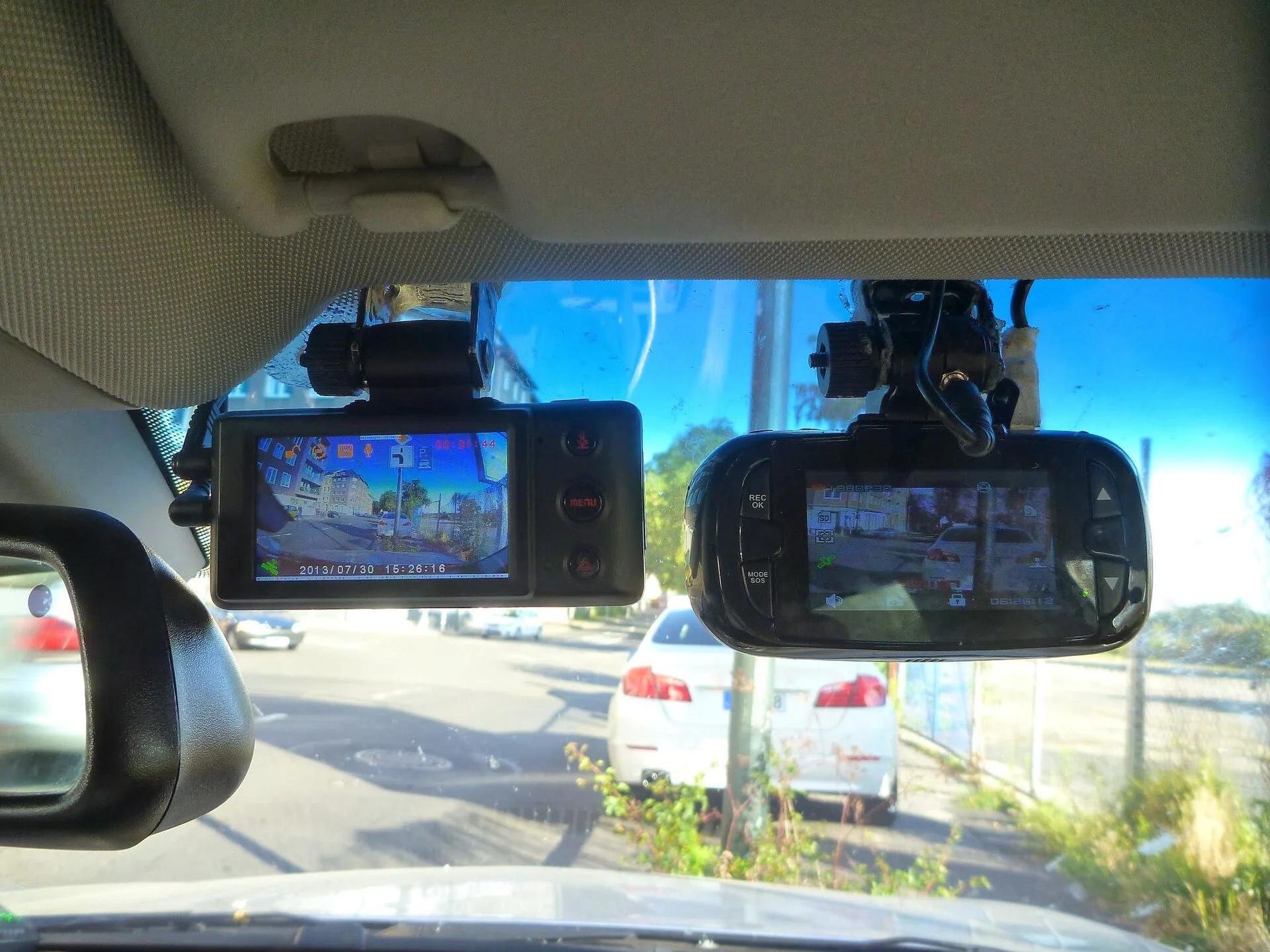
No GPS Signal Almost Never Means a Broken Dash Cam
When the GPS icon on your dash cam blinks forever, the speed readout stays blank, or your footage plays back with no map and no location stamp, it is easy to assume the camera has failed. In practice that is rarely what happened. The video side and the GPS side of a dash cam are two different systems, and the GPS side goes quiet for its own short list of reasons — a blocked view of the sky, a coated or heated windshield, a cheap charger leaking interference, a loose module, or a setting that is simply switched off. The camera itself is usually fine.
That distinction matters because it changes what you should do. A camera that records nothing has lost power or storage; a camera that records clean video but logs no speed or location is getting power and writing files, it just cannot hear the satellites. Chasing fuses and SD cards will not help that. The fix lives in sky view, glass, power quality, the GPS connector, and the settings menu instead. If you have never looked at how GPS works in a dash cam, the one-line version is that the receiver needs a clear line to several satellites overhead — and almost everything that breaks GPS is something standing between the antenna and that open sky.
This guide walks the causes from most to least common, with fixes ordered cheapest-first — most of them free. This starts with how to read your exact symptom, because a cam that never locks, one that locks slowly, and one that locks but shows no overlay are three different problems with three different answers. Replacing hardware is the last step here, and by the time you reach it, most people never need to.
First, Read the Symptom: What Kind of 'No GPS' Is It?
Before changing anything, spend two minutes deciding which of these you actually have, because the fixes barely overlap:
- Never locks at all — the GPS icon blinks or shows a slash on every drive and never goes solid. Suspect glass blocking, a loose module, a settings toggle, or a hardware fault.
- Locks, but takes a long time — speed and location appear after several minutes, often near the end of a short trip. This is classic cold-start behavior or a weak signal, not a failure.
- Locks fine, then drops mid-drive — usually obstructions (tunnels, parking garages, downtown 'urban canyons') or interference that comes and goes with another device.
- Records video but shows no speed/map on playback — frequently a settings or player problem, not a reception problem at all.
One more split is worth making early: does the camera have GPS built in, or does it rely on a GPS-equipped mount or a separate plug-in antenna? Plenty of models put the receiver in the bracket or in an add-on module precisely so the body can stay small. If yours is the module type and you have never connected one, there may be no GPS hardware in the loop to begin with — which is its own (easy) fix. If you are not sure your model even has it, the spec sheet or the settings menu will say; this is also worth knowing before you shop, since a dash cam with GPS lists it as a headline feature.
Write down which bucket you are in. The maddening thing about GPS faults is that they are intermittent — a signal that was weak yesterday locks today — so naming the symptom first stops you from crediting a fix for a lock the sky would have given you anyway. From here, the steps are ordered so you spend nothing first and only reach for parts if the free checks fail.
Start Free: Open Sky and Patience (the Cold-Start Test)
The single most common 'broken GPS' that is not broken at all is a cold start. A GPS receiver has to download current satellite orbit data — the ephemeris — before it can calculate a position, and after sitting unused for days, traveling a long distance between uses, or losing its backup power, it must fetch that data fresh from the satellites themselves. That download is slow: a first lock under an open sky can take several minutes, and DashCamTalk owners regularly report ten minutes or more in poor conditions. If your camera only finds GPS near the end of a short trip, nothing is wrong — it simply ran out of road before it finished.
The definitive free test, recommended by Cansonic, is to take the camera somewhere with a wide-open view of the sky — a parking lot, a field, a driveway away from buildings and trees — power it up, and let it sit for about 15 minutes without driving. If it locks there but never locks in its mounted position, you have just proved the camera is healthy and the problem is the install location or the glass. That one test redirects the entire diagnosis and saves people from returning a working camera.
Two related notes. First, severe weather genuinely matters: heavy rain, thick cloud, and snow scatter the already-faint satellite signal, so a lock that comes quickly on a clear day can take much longer in a storm, with no hardware fix except more open-sky time. Second, if your camera always behaves like a cold start — long lock every single power-up, even day to day in the same spot — that points to a dead internal backup battery or real-time clock, which forces a full cold start every time. That is a hardware symptom worth returning to at the end, but everything cheaper comes first.
Check the GPS Source: the Mount, Module, and Connector
On a large share of dash cams, the GPS receiver does not live in the camera body — it lives inside the windshield mount or in a small separate module that plugs in. BlackVue and similar systems are built this way. The catch is obvious once you know it: if that mount is not fully clicked in, the connector pins are dirty, or the add-on GPS module is only half-seated, the camera powers and records perfectly while receiving no GPS at all. The body is fine; the antenna is simply not connected.
So before blaming the sky, reseat the hardware. Slide the camera out of its bracket and click it firmly back in. If you have a separate GPS module or antenna lead, unplug it, inspect the contacts for grime or corrosion, and push it back together until it seats with a positive stop. A connector that merely looks seated can still have a high-resistance contact that drops the data line. This is the same family of loose-power gremlin that makes a cam cut out — if yours also keeps turning off, treat the connector and power path as a shared suspect.
While you are there, mind the antenna's orientation and neighbors. For an external GPS antenna, the adhesive face carrying the logo should point up toward the sky, not down or sideways, so the patch antenna inside it sees the satellites. Keep it away from large metal trim, the metal mirror stalk, and any heated-glass elements, all of which shadow the signal. And make sure the dash cam mount itself sits high and central on the glass rather than tucked down behind thick pillar trim. Small placement changes here often turn a no-lock into a solid lock without spending a cent.
The Windshield Itself May Be Blocking the Signal
This is the cause people least expect and the one that explains the most stubborn cases: the glass in front of the antenna is shielding it. Several common windshield technologies are quietly hostile to GPS. Premium window tint films often contain metallic compounds to reject heat, and Cansonic notes that metal acts as a shield that can block satellite signals outright. Heated or de-iced windshields embed micro-fine tungsten heating elements, and many modern screens carry solar-reflective 'athermic' coatings — and per the Hema Maps knowledge base, those coated screens are the worst offenders of all, cutting GPS reception far more than a plain heated screen does.
The good news is that carmakers anticipated this. They usually leave a small clear, uncoated patch in the glass — the black dotted (frit) area right behind the rear-view mirror — specifically so GPS and toll-transponder antennas can see the sky. The fix that the DashCamTalk 'heated windscreen SOLVED' thread keeps landing on is simply to move the camera, or its antenna, into that clear patch. Owners report going from never locking to a fix in a minute or two after relocating just a few inches into the uncoated window.
If your camera locks instantly when you hold it outside the car but fails the moment it is mounted, the glass is conclusively the culprit, and you have two real options. Relocate to the clear frit area if your model's antenna can reach it. If it cannot — or if the whole screen is metallized tint with no clear window — route an external GPS antenna to a spot with a clear view (the top of the dash near the base of the windshield, or even outside), or add a GPS signal repeater that picks up the signal outside the metal layer and rebroadcasts it inside. Both sidestep the coating instead of fighting it.
Kill the Interference: Cheap Chargers and Nearby Electronics
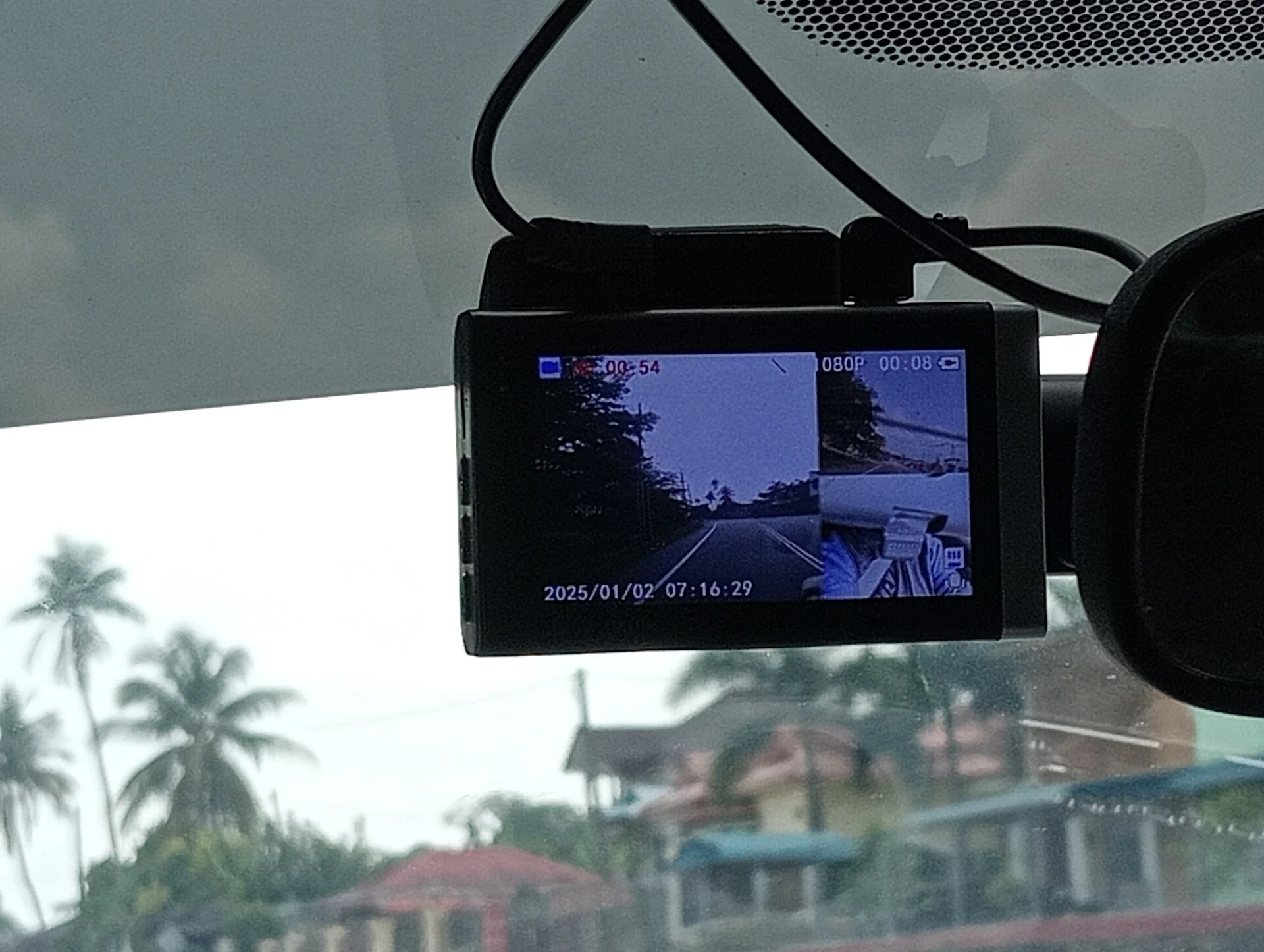
If your GPS locks sometimes and drops at others, or never quite holds, the cause may be electrical noise rather than a blocked sky. Cansonic flags low-quality third-party car chargers and USB adapters as a frequent offender: the cheap switching circuits inside them leak broadband electromagnetic interference that lands right on the faint GPS frequencies and desensitizes the receiver. A dash cam running off a bargain no-name plug can be jamming its own antenna.
The diagnostic is clean and free. Swap the power supply back to the camera's original factory cable and adapter, plugged straight into the 12V socket, and watch the GPS. If it syncs reliably on the factory cable but not on the third-party one, you have found it — the cheap charger was the problem, and the fix is to stop using it. If you hardwired the camera, the same logic applies to the buck converter or fuse-tap adapter you used; a noisy one can do the same thing.
Other cabin electronics can pile on. FM transmitters, radar detectors, a phone fast-charging on the same outlet, and even a second dash cam can all radiate enough noise to swamp a nearby GPS antenna. Give the receiver room: route the camera's power lead away from those devices, keep the GPS antenna physically separated from them, and if you suspect a specific gadget, turn it off for a drive and see if the lock steadies. For a stubborn noisy cable, clamping a ferrite choke over the power lead near the camera can absorb some of the high-frequency hash. The principle throughout is the same: GPS is a whisper-quiet signal, and the cure for interference is to quiet everything shouting near it.
Settings, Firmware, and Region Gotchas
Sometimes the receiver is locking fine and the problem is purely in software. The first thing to check is whether GPS is even switched on. Many cameras ship with a GPS toggle and a separate overlay/stamp option in the menu, and a firmware update or a factory reset can quietly flip one off. If the menu has a 'GPS' or 'GPS overlay' entry, confirm it is enabled before assuming the hardware is at fault. A wrong region setting, an unset time zone, or a clock that reset to a default date can also leave the location data looking broken even when satellites are being heard.
Firmware itself is a real cause, not just a scapegoat. BlackboxMyCar's troubleshooting for non-working GPS leads with updating to the latest firmware and then performing a factory reset, because GPS dropouts and slow-lock bugs are exactly the kind of defect manufacturers patch. Download the current firmware for your precise model from the maker's site, follow their update steps to the letter — usually copying a file to the card and letting the camera flash itself — and then reset to defaults so the new firmware starts clean. Do not interrupt a firmware flash; a half-written update causes worse problems than the one you started with.
A subtle trap lives on the storage card. If the card is failing, badly fragmented, or formatted for the wrong file system, the camera can drop the GPS metadata track while still writing video, so the footage exists but carries no location. Reformatting the card in the camera (not in a computer) on a healthy card rules this out. If reformatting and a fresh card change nothing, you have cleared software and storage as suspects and can move on to playback and hardware.
Video Records but the Speed and Map Overlay Are Missing
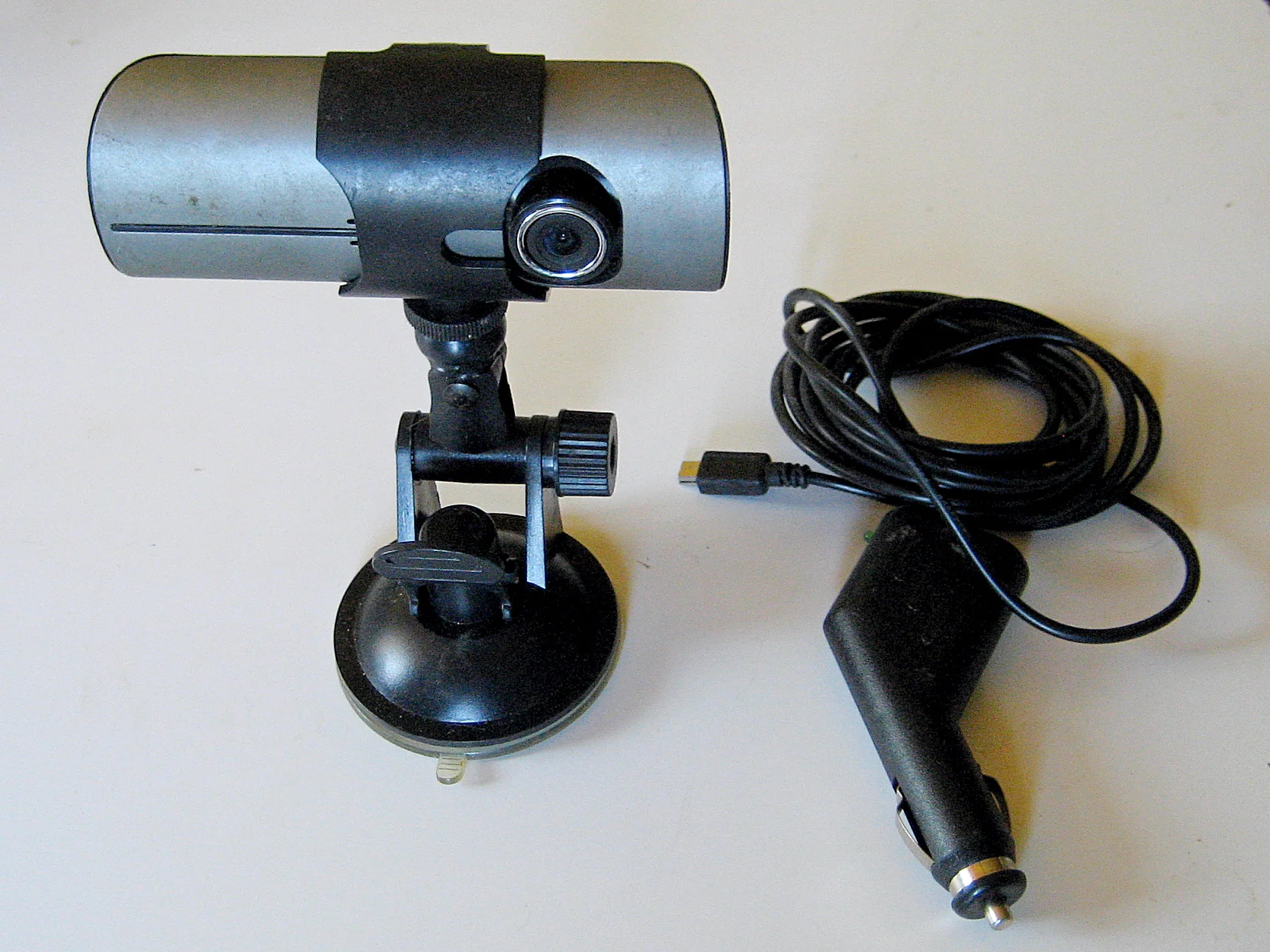
A whole category of 'no GPS' complaints is really a playback problem: the camera captured the location data perfectly, but you cannot see it. This is common and almost always free to fix. The most frequent cause is the viewer. A dash cam embeds its GPS track alongside the video, and you need the manufacturer's GPS-aware desktop player (or its phone app) to read that track and draw the speed and map. Open the same file in a generic media player and the video plays fine with no overlay — not because the data is missing, but because a plain player has no idea it is there.
So before concluding GPS failed, play a clip in the official player for your brand and look for the map panel and speed figure. If they appear there, your GPS is working and there was never a hardware issue — you were just watching in the wrong app. If you specifically want the speed burned into the picture so any player shows it, that is the GPS speed overlay feature, and it is a menu setting you turn on for the stamp to be drawn onto each frame rather than stored as a separate track.
If the official player also shows no overlay, work backward: confirm the overlay/stamp setting is enabled (covered above), confirm the clip was actually recorded after the camera had locked GPS for that drive — the first minutes of a cold-start trip legitimately have no location — and try a clip from a later, longer drive where a lock was more likely. Distinguishing 'never recorded' from 'recorded but not displayed' is the whole game here, and it routinely turns a worrying hardware scare into a two-click settings change.
When It Really Is the Hardware: Module, Antenna, or Backup Battery
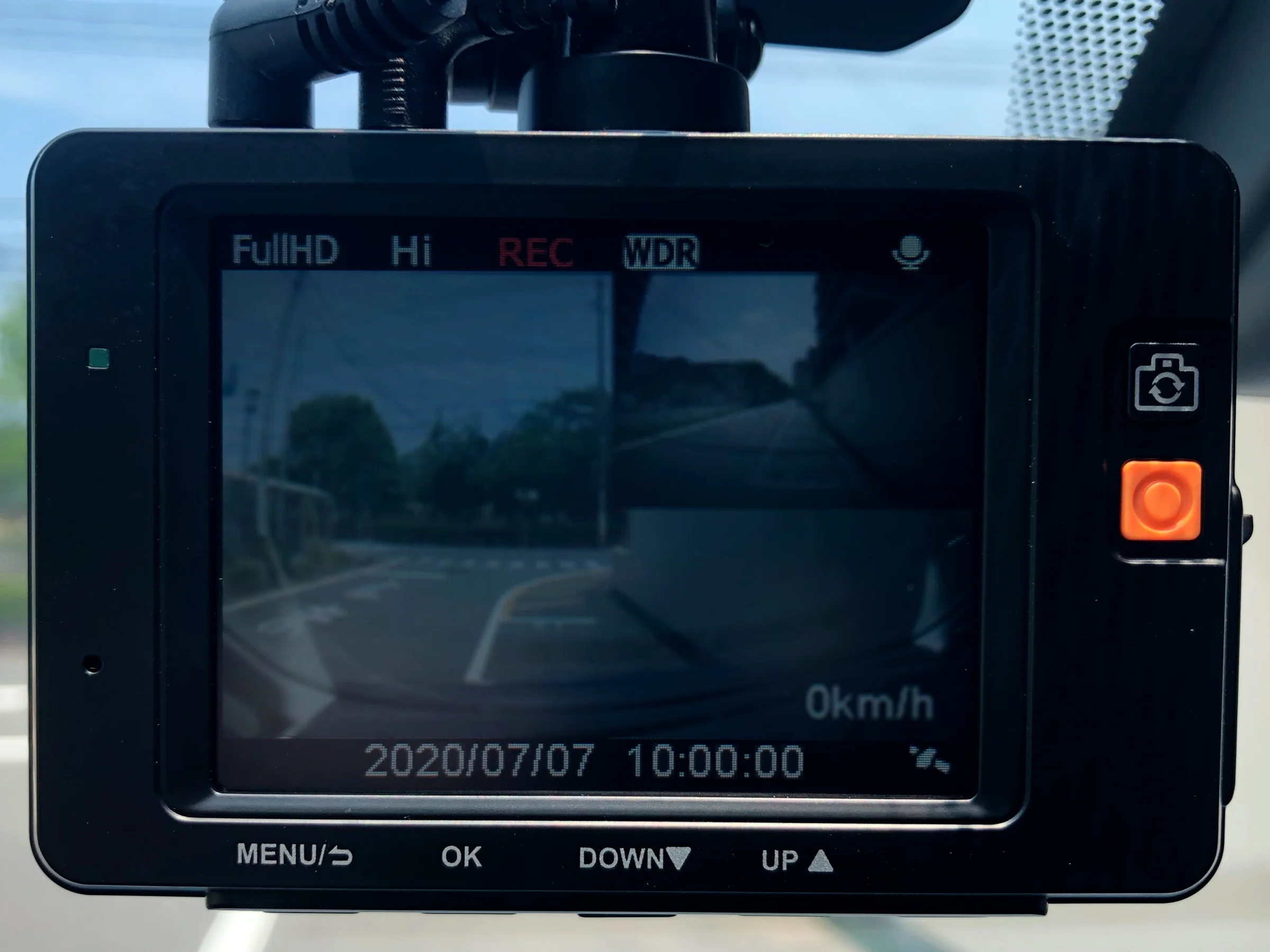
Only after the free and cheap checks fail does hardware become the likely answer, and even then the failure is usually a part, not the whole camera. The clearest tell is the open-sky test: if the camera locks GPS quickly when held outside under clear sky but never locks once mounted — and you have already ruled out the glass and the connector — the GPS receiver or its lead is marginal. On module-based systems, the cheapest path is to replace just the GPS mount or the plug-in antenna, which is a fraction of the cost of a new camera and a five-minute swap.
A camera that always behaves like a cold start — long lock or no lock on every single power-up, even in the same open spot day after day — points at a dead internal backup battery or real-time clock. Without that small power reserve the receiver cannot retain the orbit data between uses, so it starts from scratch every time and may never finish on a short drive. That is a genuine hardware fault, and on most consumer cams it is not user-serviceable, which moves you toward warranty or replacement.
Before you buy anything, do two things. Check the warranty — GPS hardware faults on a fairly new camera are exactly what the warranty exists for, and makers like the ones behind these troubleshooting guides will often replace a module or unit that cannot lock. And separate the vehicle variable from the camera variable one last time: borrow or try the camera in a different car with plain (uncoated, untinted) glass. If it locks there and not in yours, the verdict is your glass, and the money belongs in an external antenna or a repeater — not a new camera that will fail behind the same coating.
The Bottom Line: Sky, Glass, Power, or a Loose Plug
A dash cam showing no GPS signal is rarely a dead camera. The video and GPS systems are separate, and the GPS side fails for a short, fixable list of reasons: it has not had enough open-sky time for a cold-start lock, the windshield's tint, heating elements, or solar coating is shielding the antenna, a cheap charger is drowning the signal in interference, the GPS mount or module is not fully seated, a setting is switched off, the firmware needs updating, or — least often — a part has actually failed. Each of those has a specific, mostly free fix, and your symptom tells you which one to try first.
Work it cheapest-first. Give it 15 minutes under open sky to prove the camera can lock at all. Reseat the mount and module, and orient the antenna logo-up toward the sky. Move the camera into the clear dotted patch behind the mirror if your glass is tinted, heated, or coated. Swap a bargain charger for the factory cable to rule out interference. Confirm the GPS and overlay settings are on, update the firmware, and reformat the card. Check playback in the brand's own GPS player before you decide the data is gone at all.
Run that sequence and the overwhelming majority of no-signal cases resolve for the cost of a little patience and maybe a cheap antenna — long before replacing the camera enters the picture. And if you do reach the end and the hardware is genuinely dead, you will know it for certain, you will know whether it is the module or the glass, and you will spend your money on the part that was actually broken instead of guessing.