

A File That Won't Open Is Either Undecodable or Damaged - Not Both
You copy the clips off your dash cam, double-click the one you need, and nothing happens. The player throws an error, shows a black screen with sound, or reports the file is zero bytes. The fear is immediate: the footage of the thing you actually needed is gone. Before you panic, understand that a dashcam file refusing to play is almost always one of two completely different problems, and only one of them means the footage is truly damaged.
The first problem is that the recording is perfectly intact and your computer simply cannot decode it. Modern dash cams increasingly record in a compact, efficient format that Windows and macOS do not always know how to open out of the box, so a flawless file looks broken purely because the right decoder is missing. The footage is fine; the computer is the problem. The second is that the file is genuinely corrupted - incomplete, truncated, or scrambled - most often because power was cut while the camera was still writing it, or because the memory card's file system has gone bad.
These two wear the same mask. Both say 'this file won't play,' and people waste hours treating one as the other - running repair tools on a file that just needed a codec, or reinstalling a player to fix a file that is physically damaged. This guide gives you the one-minute test that tells them apart, then walks each branch: how to open the files that were never broken, and how to repair or recover the ones that really are. Most footage that seems lost is recoverable if you act before you reformat anything.
The One-Minute Triage: Is the File Bad, or Just Your Computer?
Do this before you install anything or buy a repair tool, because the answer decides everything that follows. You are trying to learn one thing: is the recording itself broken, or is your computer just unable to open a good file? Three quick checks settle it.
First, play the clip on the camera's own screen or in the maker's phone app. If it plays there but not on your computer, the recording is fine and the problem is entirely on your computer's side - a missing codec or the wrong player. Second, try the file in VLC media player, which carries its own decoders. A file that opens in VLC but not in the stock Windows Photos app or macOS QuickTime was never corrupted; it was a codec gap. Third, look at the scope of the failure:
- One specific file won't open, others are fine - usually a single corrupted clip, very often the last one recorded before power was cut. Head to the truncated-file and repair sections.
- No file opens, or the folder is empty or garbled, or the computer asks you to format the card - the card's file system is corrupted, not one clip. Go to the card-recovery section and do not reformat yet.
- Every file opens once you use VLC or the maker's app - nothing was broken; it was a codec or player problem and you are already done.
Naming which branch you are in turns the rest of this from guesswork into a short, ordered checklist aimed at the actual cause. Spend the minute; it routinely saves an afternoon.
The Codec Trap: A Perfect File Windows Just Can't Decode
This is the happiest outcome, and it is also one of the most common, so rule it out first. Many newer dash cams record in HEVC, also called H.265, because it packs the same image quality into a much smaller file - good for fitting more footage on the card. The catch is that Windows and macOS do not always ship with an H.265 decoder, so the operating system's built-in player cannot open the file. What you see is a black screen with audio, a green or scrambled picture, or a flat 'unsupported format' error - all of which look exactly like corruption but are nothing of the kind.
The fastest fix is to open the clip in VLC media player. VLC bundles its own codecs, including H.265, so it plays dashcam files the stock player chokes on. If VLC opens it, the recording was always fine and you can stop worrying about lost footage. If you would rather keep using the built-in Windows apps, install Microsoft's HEVC Video Extensions from the Microsoft Store, which adds the H.265 decoder so the Photos app and Media Player can open the files directly.
There is a sibling cause worth knowing here: some cameras save in a less common container such as a transport-stream (.TS) file or a vendor-specific format, and they wrap a GPS and speed overlay around the video. Those files often open only in the maker's own desktop viewer or app, which is built for that exact format. If a clip plays on the camera and in the vendor's player but nowhere else, you are looking at a container or overlay quirk, not damage. In every one of these cases the footage is intact - you are just reaching for the wrong key.
The Truncated Last Clip: Why Power Loss Breaks the One File You Need
Now the genuinely-damaged branch, and the cruel irony at the heart of it. The single most common corrupted dashcam file is the very last clip the camera was recording when power was cut - and that is usually the clip of the collision, the moment you most needed it. An accident kills power, the engine is switched off mid-recording, or someone pulls the card while the camera is still writing, and the file is left unfinished.
The reason a half-written file won't open at all comes down to how MP4 video is structured. An MP4 or MOV file keeps a small index - the moov atom - that tells the player where the video and audio data live and how long the clip runs. The camera writes the actual footage continuously and only finalizes that index when it closes the file. If power dies first, the footage data is sitting on the card but the index was never written, so every player looks for the map, finds nothing, and reports the file as zero length, unseekable, or simply unopenable. The video is physically there; the table of contents is missing.
This is exactly why supercapacitor dash cams are recommended over older lithium-battery models for reliability. A supercapacitor holds enough charge after power is cut to let the camera finish writing and properly close the current file, so the moment-of-impact clip is saved intact instead of truncated. If you have already got a truncated file, do not despair - because the footage data is still on the card, a truncated clip is one of the most repairable kinds of corruption there is, as the repair section below explains.
When the Whole Card Is the Problem: File-System Corruption
If it is not one clip but many - the folder looks empty, the file names are garbled, several files refuse to open, or your computer pops up a message asking you to format the card before you can use it - the problem is the card's file system, not any single recording. The file system is the index the card uses to track where every file is stored, and when it gets corrupted the computer can no longer find the footage even though the footage is still there.
The most important rule in this situation is a single word: do not format. Formatting is exactly what the error message suggests, and it will clear the error - by erasing the index that points to your footage, making recovery far harder. When a card still holds clips you need, formatting is the last thing you do, not the first.
Instead, run data-recovery software while the card is untouched. Tools built for exactly this - the recovery modes in MiniTool, Wondershare Recoverit, and similar utilities - scan the raw card and pull the readable video files off to a separate drive, bypassing the broken file system entirely. Recover everything you can to your computer first; only once the footage is safely copied elsewhere should you reformat the card to put it back into service. File-system corruption on a card that keeps recurring is also a warning sign that the card is failing, which leads to the next cause.

Bad, Fake, and Worn-Out Cards That Write Broken Files
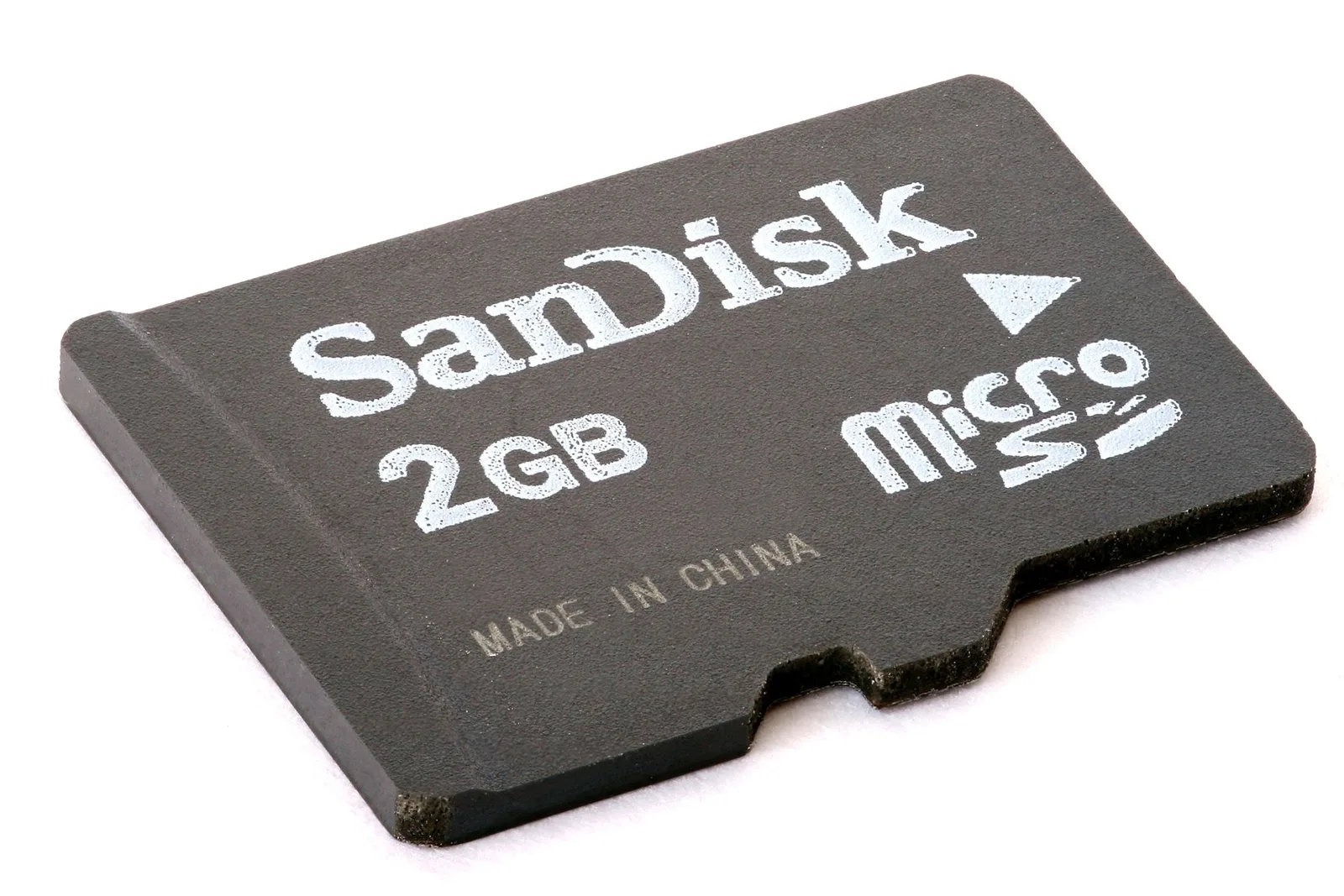
Sometimes the camera and the computer are both fine and the card is quietly sabotaging your footage. A dash cam writes a continuous high-bitrate stream and overwrites the oldest clips in a loop, which is punishing duty for flash memory. A card that cannot keep up, or one that has been written past its service life, saves files incompletely or with garbage data baked in, and those files then refuse to play. A card that used to be reliable and now produces unopenable clips more and more often is wearing out and needs replacing.
A card that benchmarks far below its rated speed, or reports a capacity that does not match its label, is almost certainly counterfeit - and no repair tool can fix the broken files it writes, only a real card can stop new ones.
Counterfeit cards are the trap that fools almost everyone, because the card looks new and carries an impressive capacity and speed label while containing slower, smaller flash than claimed. It mounts, the camera records, and then it cannot sustain the write speed the camera needs, so footage gets saved corrupted in a way that looks like a camera fault. If you bought a suspiciously cheap high-capacity card from a marketplace seller and your files started failing, suspect the card first: run a free capacity-and-speed test on a computer to confirm it actually holds and writes what it claims. The durable fix is a genuine high-endurance card built for continuous recording, kept inside your camera's supported capacity range and bought from a reputable retailer - it is cheap insurance against losing the one clip that mattered.
The Quiet Culprit: A File Damaged While Copying, Not Recording
Here is a cause that is easy to miss because it has nothing to do with the camera or the card at all: the file on the card is perfectly fine, and it was only damaged on its way to your computer. An interrupted copy, a flaky or cheap USB card reader, a loose connection, or pulling the card mid-transfer can all leave the copied file incomplete on your computer even though the original is intact on the card. The result is a clip that won't play on the desktop and a moment of dread that turns out to be unwarranted.
The fix is delightfully simple, which is exactly why it should be one of the first things you rule out. Go back to the card and copy the file again, ideally with a different, known-good card reader and a different USB port. If the freshly copied file plays, the recording was never the problem and you have lost nothing. Always let a copy finish completely before unplugging the reader, and use your operating system's eject or safely-remove option rather than yanking the card, because removing a card mid-write is its own way of creating both a corrupted copy and a corrupted card.
It is also worth playing the file directly from the card in VLC, without copying it first. If it plays from the card but not from the copy on your drive, you have proven the transfer was the culprit. This thirty-second check separates a transfer hiccup from a genuinely broken recording, and it costs nothing but the time to plug the reader back in.
How to Actually Repair a Corrupted Dashcam Video
When you have confirmed a file is genuinely damaged - it won't open anywhere, including the camera and VLC - it is time to repair it. The good news, especially for the truncated last clip, is that the footage data is usually still present and only the file's structure is broken, which is the repairable kind of damage. Work from free to paid.
- VLC — free; rebuilds the index on damaged AVI files and plays through partial files.
- Untrunc — free and open-source; rebuilds a truncated MP4 or MOV from a healthy reference clip.
- recover_mp4 and GRAU Video Repair Tool — guided, reference-based rebuilds.
- Stellar Repair for Video or Wondershare Recoverit — commercial tools that walk you through it.
Start with VLC, which is free and already on your machine. For damaged AVI files VLC offers to rebuild the index when you open them, and it can often play through partly-damaged files far enough to let you salvage usable footage. If that is not enough, reach for untrunc, a free open-source tool made for exactly the power-loss case: it rebuilds a truncated MP4 or MOV by copying the missing index structure from a healthy reference clip recorded by the same camera at the same settings. That reference is the secret ingredient - keep one good clip from your camera around precisely so you can repair a broken one later.
If the open-source route is daunting, dedicated repair tools do the same reference-based rebuild with a guided interface: recover_mp4 and GRAU GmbH's Video Repair Tool are long-standing favorites, and commercial options like Stellar Repair for Video and Wondershare Recoverit walk you through supplying the broken file plus a working sample from the same device. Across all of them the rule is the same: the healthy reference must come from the exact same camera, resolution, and frame rate as the damaged file, because the tool copies the working structure onto your salvaged data. A mismatched reference can fail outright or produce a file that still won't play, so match it carefully and your odds of getting the clip back are good.
Recovering Footage From a Card the Computer Won't Read
Repairing a single file assumes you can still get the file off the card. When the card itself is the obstacle - it shows as empty, throws errors, or demands a format - you need recovery before repair. The order matters, and rushing it is how people turn a recoverable card into a wiped one.
Stop writing to the card the instant you notice the problem. Every new write risks overwriting the very data you are trying to save, so do not let the camera keep recording on it and do not format it. Move the card to a computer with a reliable reader and point data-recovery software at it - MiniTool, Wondershare Recoverit, and comparable tools scan the raw card surface and rebuild a list of recoverable video files independent of the broken file system. Always recover the files to a different drive, never back onto the same card, so the recovery process is not fighting itself for space.
Once the footage is safely copied off, you can deal with any individual clips that came back damaged using the repair tools above, and only then reformat the card - in the camera, not the computer - to return it to service. If a card needs recovery more than once, treat it as failing and retire it; a card that keeps corrupting is not worth the footage it will eventually eat. For the harder case of a card that was in a vehicle that was wrecked or submerged, the same recover-first discipline applies, just with lower odds and more patience.
Prevention: Stop Producing Corrupted Files in the First Place
Every fix above is a rescue mission, and the best rescue is the one you never have to run. A handful of habits eliminate most corrupted-file problems before they start, and they cost far less than an afternoon of recovery software.
- Choose a supercapacitor camera that can close the file after power is cut.
- Use a genuine high-endurance card within the camera's supported capacity.
- Format the card in the camera on a regular schedule.
- Keep the firmware up to date and always eject the card safely.
The biggest lever is the camera itself: for reliably saving the moment-of-impact clip, choose a supercapacitor model over an older lithium-battery one, because the supercapacitor's job is to keep the camera alive just long enough after power is cut to close the file properly. Pair it with a genuine high-endurance card rated for continuous recording, kept inside the camera's supported capacity range and bought from a reputable seller, so the card is not quietly writing broken files as it wears.
Then maintain it. Format the card in the camera, not on a computer, on a regular schedule - many owners do it monthly - because in-camera formatting matches the camera's file system and clears the fragmentation and small errors that constant loop recording leaves behind, which is where a lot of corruption is born. Keep the camera's firmware up to date, since manufacturers ship fixes for file-handling and recording-stability bugs. Always eject the card through your operating system before pulling it, never yank it while the camera is recording, and keep one known-good clip from your camera archived as a repair reference. Do these few things and the day you actually need the footage, it will simply be there - whole, and ready to play.
The Bottom Line
A dashcam file that won't play on your computer feels like lost evidence, but it usually is not. The symptom hides two opposite problems: a perfectly good recording your computer cannot decode, or a file that is genuinely damaged. They look identical, which is why the first move is always the one-minute triage - play the clip on the camera and in VLC, and check whether one file or the whole card is affected - so you stop guessing and start fixing the right thing.
If it is a codec problem, you are minutes from done: open it in VLC or install the H.265 extension, or use the camera maker's own player, and the footage was never in danger. If the file is truly corrupted, the footage data is usually still on the card, so repair the truncated clip with VLC, untrunc, or a reference-based repair tool, and recover a bad card with data-recovery software before you ever reformat it. The cardinal rule when a card asks to be formatted and you still need the footage is simple: recover first, format last.
The deeper lesson is that a dash cam is only as trustworthy as the weakest link in the chain that saves the file - the camera's power handling, the card's health, and your own copy-and-eject habits. Choose a supercapacitor camera and a real high-endurance card, format on a schedule, keep the firmware current, and handle the card gently, and you will spend your time watching the footage you needed instead of fighting to open it.