
The picture is fine, but the lines are gone
There's a specific, maddening version of a backup-camera problem where everything looks healthy — you shift into reverse, the screen wakes up, the rear view is sharp and right-side-up — except the colored parking guide lines that used to lay over the image are simply gone. No red, yellow, and green path, no grid, just a bare video feed. It feels like a fault, but it's a different kind of problem from a dead camera.
That distinction matters, because the guide lines are not part of the video at all. They're a separate graphic — an overlay — drawn on top of the picture by software, and when they vanish it almost never means the camera failed. It means whatever was generating that overlay stopped, got switched off, or was never set up to begin with.
So the whole game with missing guide lines is figuring out who was drawing them. On different setups that job belongs to the camera itself, to the head unit or factory display, or — for the moving lines that bend as you steer — to the vehicle's own computer reading the steering wheel. Lose the lines and one of those three sources went quiet.
This guide walks through each source in turn, in the order that solves the most cases fastest: the on-screen toggle that gets flipped by accident, the guideline wire on aftermarket cameras, the mismatch where neither the camera nor the head unit draws lines, and the steering-angle calibration that the dynamic lines depend on. Most of it you can sort in your driveway without buying a thing.
Static vs. dynamic guide lines: which one is missing?
Before you change anything, figure out which kind of line you've lost, because the two come from completely different places. Backup cameras show one of two styles of guide line, and naming yours points you straight at the right fix.
Static guide lines are fixed. They paint the same red-yellow-green path on the screen no matter which way the wheels are pointed, marking roughly where the car will go if you reverse straight. These are the simple, common kind, and they're generated either by the camera's own chip or by the head unit — nothing about the car's steering is involved.
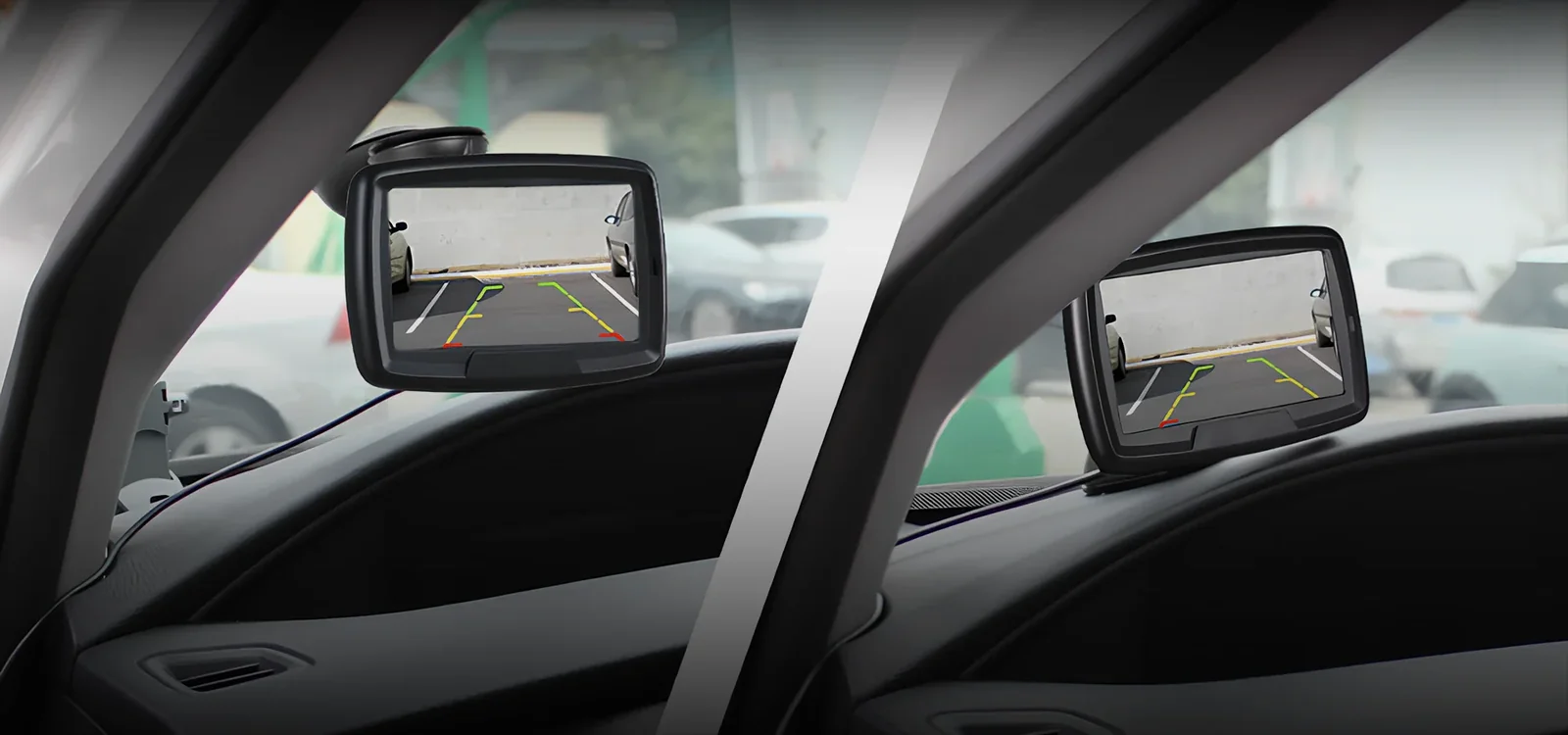
Dynamic guide lines (sometimes called trajectory or active lines) bend as you turn the wheel, showing the curved path the car will actually take. Those can only exist if something is reading the steering-angle sensor in real time, which means the vehicle's computer is involved — an aftermarket camera tapped to a 12-volt reverse wire has no way to know your steering angle and so cannot draw them.
The test is quick: with the car safely stopped in reverse, turn the steering wheel and watch. If lines were bending before and now there's nothing, you've lost dynamic lines and the cause is usually on the vehicle/steering side. If your lines never moved and now they're absent, you've lost static lines and the cause is a toggle, a wire, or the overlay source — the first half of this guide. Knowing which one you had saves you chasing the wrong fix.
Where guide lines actually come from
To fix missing lines you have to know who draws them, and on a backup camera setup there are exactly three possible artists. Only one of them is working in your car, and identifying it is half the battle.
- The camera itself. Many cameras — factory and aftermarket — have a tiny processor that paints fixed guide lines onto the video before it ever leaves the camera. The head unit just displays whatever it receives. These lines are usually static, and they often have their own on/off control on the camera's harness.
- The head unit or factory display. The screen takes a plain video feed and draws its own overlay on top. Factory systems and Android aftermarket stereos almost always do this, with a parking-guideline setting buried in a menu. The lines live in the radio, not the camera.
- The vehicle's computer. For dynamic lines that bend with the wheel, the car's body or camera module reads the steering-angle sensor and generates the curved path. This only happens on systems engineered for it — factory setups or full integration kits.
Here's the catch that trips people up: if your lines come from the camera and you swap or reset the head unit, the lines should still appear — they're baked into the feed. But if your lines come from the head unit and you change the camera, the new camera might send a clean feed with no lines, and the head unit's overlay might be off or incompatible. Most 'my lines disappeared' cases are one of those two events: something in the chain changed, and the source that used to draw the lines went silent.
So as you read the fixes below, keep asking which artist was drawing my lines. The on-screen menu fix targets the head unit; the guideline-wire fix targets the camera; and the calibration fix targets the vehicle. Match the source to the fix and you skip the trial-and-error.
Fix 1: The on-screen guideline toggle
This is the most common cause and the easiest to miss, because it's just a setting that got switched off. Almost every system that draws its lines in the head unit — factory or aftermarket — has a menu option to turn the parking guidelines on or off, and it's surprisingly easy to flip by accident or to have reset itself.
On a factory system, look in the vehicle settings while the camera view is up: many cars put a 'guidelines,' 'parking guides,' or 'trajectory' on/off switch right in the reverse-camera screen or in the central display menu. Some let you toggle it by tapping a small on-screen button or an icon in the corner of the camera image while you're in reverse. If you can't find it, the owner's manual section on the rear camera spells out exactly where the setting lives for your model.
On an aftermarket head unit — an Android stereo or a double-DIN touchscreen — the control is usually in a 'rear view,' 'camera,' or 'parking' settings page. There you'll typically find a 'parking line' or 'guideline' toggle, and often a separate screen for moving the lines around. Turn the toggle on and the overlay reappears instantly.
Why does a setting you never touched switch itself off? A few reasons: a dead or disconnected battery can reset the head unit to defaults, a software or firmware update can revert preferences, and a factory reset wipes them outright. If your lines vanished right after a battery change, a dealer visit, or a head-unit update, this menu toggle is almost certainly your fix — check it before you touch a single wire.
- A dead or disconnected battery can reset the head unit to its defaults.
- A software or firmware update can revert your saved preferences.
- A factory reset wipes the guideline setting outright.
Fix 2: The guideline wire on aftermarket cameras
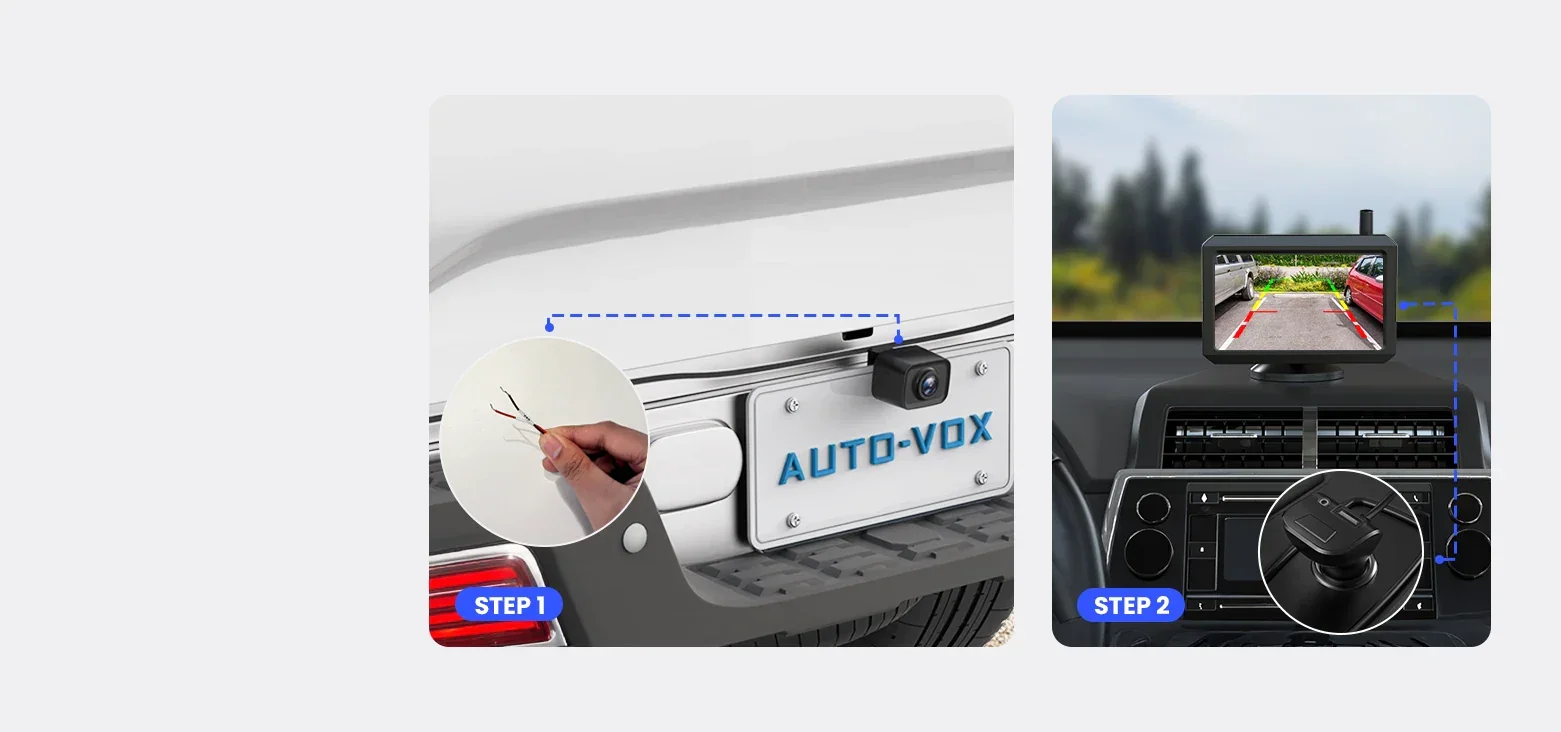
If your guide lines are generated by the camera rather than the head unit, there's a physical control you may not know about: many aftermarket backup cameras ship with a dedicated guideline wire, and how it's connected decides whether the lines show.
On a lot of cameras the harness has an extra thin wire — often looped back on itself or capped — that controls the overlay. Connect it one way and the camera paints its lines; leave it open or connect it the other way and the camera sends a clean image with no lines. Some cameras replace the wire with a tiny inline button or a small switch on the cable that toggles the lines. If your install never had lines, or they vanished after someone worked on the wiring, this wire is the prime suspect.
Track it down at the camera end of the harness, where the camera's pigtail meets the extension cable. Look for any small extra lead beyond the video and power connections, and check the camera's instruction sheet — it names the guideline wire and tells you which state turns the overlay on. A circuit test light or a multimeter helps you confirm what that lead is actually seeing if the labeling is unclear.
One honest caveat: not every camera has this wire. Cameras that rely on the head unit to draw the lines won't have a guideline lead at all, and fishing for one you don't have wastes time. So if the camera's manual makes no mention of a guideline wire or switch, your lines are a head-unit job — go back to the on-screen toggle in Fix 1 instead of hunting the harness.
Not every camera has a guideline wire — if the manual never mentions one, your lines are a head-unit job, so go back to the on-screen toggle.
Fix 3: Neither the camera nor the head unit is drawing lines
Sometimes the lines aren't switched off — they were never being generated in the first place. This is the classic mismatch: a camera that doesn't paint its own lines, paired with a head unit that doesn't draw an overlay either. Neither end is responsible, so the screen shows a bare feed no matter what you toggle.
It happens most often after a parts swap. You replace a factory camera that had built-in lines with a cheap aftermarket one that sends a plain image, while your old or basic head unit was always relying on the camera to supply the overlay. Or you add a camera to a simple monitor or a head unit that has no guideline feature in its menus. Both ends are working; nobody is drawing the lines.
To confirm it, check both sources directly. Look in the head unit's menus for any parking-guideline setting at all — if there's none, the radio can't draw lines. Then read the camera's spec sheet for 'built-in guide lines' or 'parking lines' — if it doesn't list them, the camera can't either. When both come up empty, you've found your answer: there's no artist in the system.
The fix is to put one source back in. The cleanest route is a camera with built-in guide lines, which paints the overlay itself and works with any display. Alternatively, an aftermarket head unit with a camera input and a guideline menu can draw the lines over whatever camera you have. Either way you're adding the line-drawing capability the current pairing simply lacks — our aftermarket install guide covers wiring the replacement cleanly.
- Check the head unit's menus for any parking-guideline setting — none means the radio can't draw lines.
- Read the camera's spec sheet for 'built-in guide lines' — if it isn't listed, the camera can't either.
- When both come up empty, add one source: a camera with built-in lines or a head unit that can draw them.
Fix 4: Dynamic lines gone after a battery disconnect or alignment
If you specifically lost the moving lines — the ones that curved as you turned — the cause is usually on the vehicle side, and it ties back to the steering-angle sensor that those lines depend on. When the car can't read your steering angle reliably, it stops drawing the curved path and may drop to plain static lines or none at all.
The trigger is almost always a recent event. Disconnecting the battery, having the steering or suspension worked on, getting a wheel alignment, or replacing a steering-related part can all reset or de-calibrate the steering-angle sensor. The car then doesn't trust the angle data, so the dynamic overlay disappears until the sensor is re-zeroed.
Re-calibrating the steering-angle sensor is what brings dynamic lines back. On some vehicles a simple relearn procedure — turning the wheel lock to lock and driving a short distance — lets the car re-zero itself, and the steps are in the owner's manual. On others it takes a scan tool to command the calibration, which is a quick job at a shop or dealer. Until that calibration is done, no amount of menu-toggling restores the moving lines, because the data they're built from isn't trusted yet.
Worth knowing: losing only the dynamic lines while plain static lines still show is a strong sign this is your case — the overlay system is alive, it just can't read steering angle. If both static and dynamic lines are gone, the problem is more likely the toggle, wire, or source from the earlier fixes, and the steering sensor is a red herring. Separate the two before you book a calibration you may not need.
Fix 5: Lines vanished after a software update or reset
A whole category of missing-line cases comes down to software, and they share a tell: the lines were there, then a software event happened, and now they're not. The hardware is untouched; a setting or a state got wiped or changed, and the overlay went with it.
The usual culprits are a head-unit firmware update that reset preferences, a factory reset that wiped your camera settings, or a dealer software flash during service. Any of these can quietly turn the guideline setting back to its default — which, on plenty of systems, is off. The camera and the display are both fine; the preference that drew the lines was simply cleared.
The fix is to walk back through the camera settings and re-enable what was lost. Re-open the parking-guideline toggle from Fix 1 and switch it on; if your system had the lines positioned a certain way, you may need to re-set their placement too, which the next section covers. On a factory car, a service visit that flashed new software occasionally needs the technician to re-enable the camera options — worth mentioning if the lines died right after a dealer trip.
There's a useful sanity check here. If the lines disappeared at the exact moment of a known software event — an update notification, a reset you performed, a service appointment — you can almost always rule out the wiring and the camera entirely and focus on settings. Hardware doesn't fail on the same afternoon you updated the radio; a wiped preference does. Let the timing tell you where to look.
Putting the lines back where they belong
Once your guide lines reappear, you may find they're back but in the wrong place — too wide, too narrow, or not lined up with your actual lane. That's normal after re-enabling them, and most systems let you re-position the overlay so it tells the truth about where your car will go.
On aftermarket head units there's usually a calibration screen, reached from the same camera-settings menu, where you drag the corners of the line grid to match real-world reference points — the edges of a parking space, a driveway, or marks you lay out behind the car. Take your time here: lines that don't match reality are worse than no lines, because they give false confidence about clearance.
Factory systems are generally pre-calibrated and don't expose a drag-to-adjust screen, so if your factory lines come back crooked or off-center, that points back at the steering-angle calibration from Fix 4 rather than a positioning menu. Aligned static lines that simply look a little off are usually just the camera's mounting angle, which a physical tweak of the camera aim corrects.
However you get there, the goal is lines that honestly track your path. Reverse slowly while you dial them in, use a fixed reference behind the car, and remember the lines are an aid, not a substitute for looking — they're at their best when they confirm what your mirrors and a glance over your shoulder already tell you.
Lines that don't match reality are worse than no lines — they give false confidence about clearance, so align them to real reference points before you trust them.
Quick reference: match the symptom to the fix
Once you know guide lines are an overlay and not part of the video, troubleshooting is a short lookup. Find your symptom and start with the matching fix:
| What you see | Where to start |
|---|---|
| Image is fine, all lines suddenly gone | The on-screen guideline toggle (Fix 1) — a setting reverted. |
| Never had lines on an aftermarket camera | The camera's guideline wire or switch (Fix 2). |
| No lines, no menu option, camera lists none | Neither end draws lines (Fix 3) — add a source. |
| Lost only the lines that bent with the wheel | Steering-angle calibration (Fix 4). |
| Lines died right after an update or reset | Re-enable the wiped setting (Fix 5). |
| Lines are back but don't match your lane | Re-position the overlay (positioning section). |
Work it top to bottom and most cases resolve in the first two rows, because a flipped setting and a guideline wire account for the large majority of vanished-line complaints. The table works because the overlay only has a handful of inputs — a toggle, a wire, a source, and steering data — and each maps to a specific check.
If you run the list and discover the screen itself is the problem — black, frozen, or not coming on in reverse at all rather than just missing its lines — that's a different fault. Step over to the general backup camera diagnosis guide, and if the picture is there but flipped, the mirrored or upside-down image fix covers that overlay-adjacent quirk.
Missing guide lines are almost always a setting, not a failure
When the parking guide lines disappear but the picture stays sharp, it feels like the camera broke — but it almost never did. The lines are a separate graphic overlay, and they go missing because whatever was drawing them got switched off, disconnected, reset, or was never set up at all.
Work the sources in order and you'll find it fast. Start with the on-screen guideline toggle, which a battery disconnect or a software update loves to flip off. Check the camera's guideline wire on an aftermarket install. Confirm that something in the chain — camera or head unit — is actually capable of drawing lines at all. And if it was only the moving, steering-following lines you lost, re-calibrate the steering-angle sensor that they depend on.
Almost every case lands in one of those buckets, and most need nothing more than a few minutes in a settings menu — no new parts, no shop visit. The exceptions are the genuine mismatch, where you add a line-drawing source, and the dynamic-line calibration, which a relearn or a scan tool sorts out.
If your trouble turns out to be bigger than a missing overlay — the screen won't wake, the feed is black, or nothing happens in reverse — the general backup camera diagnosis guide walks the power-and-video faults, and if you're weighing a replacement that comes with solid built-in lines, our best backup cameras guide points to systems that get the overlay right out of the box.
For background, see how wireless reverse camera tech works.