Exploring the Garmin Dash Cam Mini 2: Compact Technology for Every Drive
Auto Roamer
11 min read
Includes Video
The unexpected fender bender. The swerving driver who vanishes before you can get a plate. The cyclist who darts out from behind a parked car. These are the moments you wish you had eyes in the back of your head, or at least a reliable witness.
The unexpected fender bender. The swerving driver who vanishes before you can get a plate. The cyclist who darts out from behind a parked car. These are the moments you wish you had eyes in the back of your head, or at least a reliable witness. That's where the Garmin Dash Cam Mini 2 comes in. This tiny device, no bigger than a car key, tucks discreetly behind your rearview mirror, ready to capture critical footage without being a distraction Facebook. We've found it's incredibly easy to set up, often taking less than five minutes to get it wired and recording Facebook. Pairing with your smartphone is straightforward: install the Garmin Drive app, turn on the dash cam, and keep the devices within 3 meters (10 ft.) of each other Garmin Dash Cam Mini 2 - Pairing with Your Smartphone. This connection lets you manage settings, view recordings, and even use cloud storage via the Vault feature Garmin Dash Cam Mini 2 - Pairing with Your Smartphone. It's a compact, yet powerful, piece of tech that offers peace of mind on every journey.
Key specifications for garmin dash cam mini 2
The Short Answer
The Garmin Dash Cam Mini 2 is your go-to for discreet, essential dashcam functionality. It's the perfect choice when you need reliable incident recording without a bulky eyesore.
This camera excels at providing clear, 1080p video, ensuring you capture crucial details of any event on the road. Its compact size means it practically disappears behind your rearview mirror, preserving your vehicle's interior aesthetics.
Pairing the Garmin Dash Cam Mini 2 with your smartphone is straightforward via the Garmin Drive app, which is available from your phone's app store. You'll need to have the device and your smartphone within 3 meters (10 ft.) of each other during setup Garmin Dash Cam Mini 2 - Pairing with Your Smartphone. This app is your central hub for managing settings, viewing footage, and even setting up a multiple-camera network if you decide to expand your setup.
One of the standout features is its intuitive voice control, allowing you to save footage or take pictures without taking your hands off the wheel. You can also press a button to save a picture and video clip, or hold it to enter pairing mode Garmin Dash Cam Mini 2 - Device Overview. The ability to enable or disable audio recording is also a simple press away, offering flexibility depending on your privacy needs.
The Garmin Dash Cam Mini 2 is ideal for drivers who prioritize a clean, unobtrusive setup and need reliable recording for peace of mind. While it may not have built-in GPS tracking, its core functionality for capturing video evidence is robust and easy to manage through the dedicated app Garmin Dash Cam Mini 2.
To enhance your driving experience, consider exploring our comprehensive Garmin dashcam review for more options.
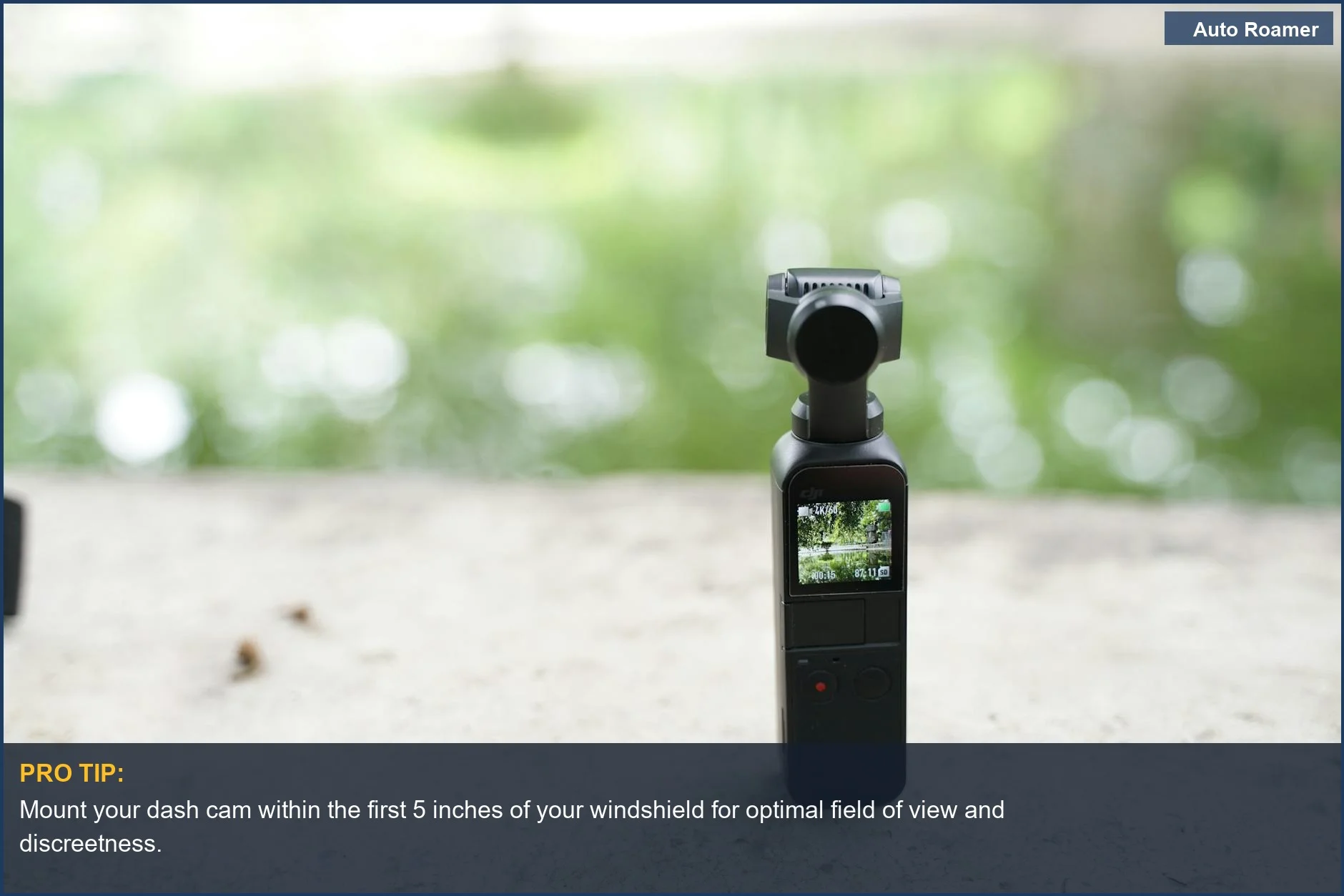
This compact Garmin Dash Cam Mini 2, shown outdoors, is perfect for discreetly recording essential road incidents in crisp 1080p HD video.
| Photo by Sandeep Kashyap
This compact Garmin Dash Cam Mini 2, shown outdoors, is perfect for discreetly recording essential road incidents in crisp 1080p HD video.
| Photo by Sandeep Kashyap
What You Need to Know
1
Compact design for discreet placement - The Garmin Dash Cam Mini 2 is remarkably small, about the size of a car key, allowing it to be easily hidden behind your rearview mirror. This unobtrusive design makes it suitable for virtually any vehicle, from a compact sedan to a larger SUV or truck, without obstructing your view. Garmin Dash Cam Mini 2.
2
High-definition video capture - The camera records in excellent resolution, ensuring clear footage of your surroundings. It captures a wide area in front of your vehicle, providing comprehensive coverage. Complete Guide to the Garmin Dash Cam Mini 2 - YouTube.
3
Easy smartphone integration - Pairing the Dash Cam Mini 2 with your smartphone is straightforward using the Garmin Drive app. This connection allows you to manage settings, view recorded footage, and upload videos to the secure Vault storage service. Garmin Dash Cam Mini 2 - Pairing with Your Smartphone. You can place the device and your smartphone within 3 m (10 ft.) of each other during the initial pairing process. Garmin Dash Cam Mini 2 - Pairing with Your Smartphone.
4
Voice control for hands-free operation - The ability to control the dash cam with voice commands adds a layer of convenience, allowing you to focus on driving. This feature is particularly useful when you need to quickly save a recording or stop audio capture without taking your hands off the wheel. Garmin Dash Cam Mini 2 - Device Overview.
5
Continuous recording and event detection - The Garmin Dash Cam Mini 2 automatically records your drive, saving footage when it detects an incident. This ensures you have a record of any unexpected events on the road. Some users have noted its ability to record for extended periods until storage is full, which can be configured through its settings. Complete Guide to the Garmin Dash Cam Mini 2 - YouTube.
6
Potential for long-term reliability - While some reports suggest a lifespan of a few years before potential failure, many users have had their Garmin Dash Cam Mini 2 units functioning reliably for extended periods across multiple vehicles. Proper care and usage, including formatting the memory card periodically, can contribute to its longevity. Garmin Dash Cam Mini 2 - Device Overview.
To enhance your driving experience, consider exploring our list of the best mini dashcams available in 2025.
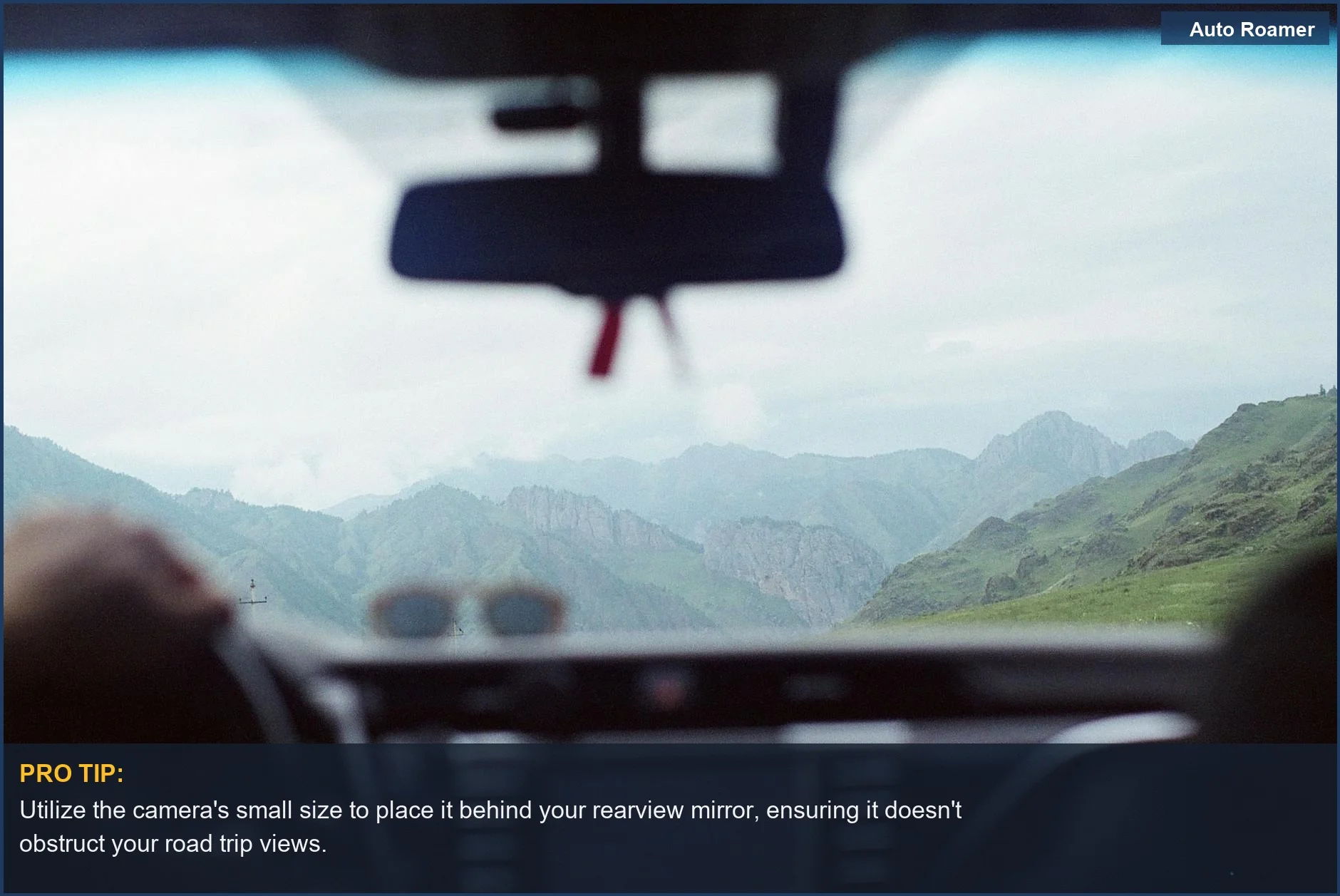
Capture the essence of your road trip journey with the Garmin Dash Cam Mini 2, its compact design fitting seamlessly behind the rearview mirror.
| Photo by Мария Сусоева
Capture the essence of your road trip journey with the Garmin Dash Cam Mini 2, its compact design fitting seamlessly behind the rearview mirror.
| Photo by Мария Сусоева
How to Handle This
1
Download the Garmin Drive app - Before plugging in the Garmin Dash Cam Mini 2, install the app on your smartphone. It's your central hub for settings, footage, and firmware updates. Without it, you can't adjust recording loops or check camera aim. Garmin Dash Cam Mini 2 - Pairing with Your Smartphone.
2
Pair your camera and phone - With the app installed, power on the Dash Cam Mini 2. Keep your phone and camera within 3 meters (10 ft.). Open the Garmin Drive app. If this is your first Garmin device, accept license agreements. Otherwise, select "Add Another Device." Failure to pair means no access to footage or settings. Garmin Dash Cam Mini 2 - Pairing with Your Smartphone.
3
Mount and aim for clarity - Mount the Garmin Dash Cam Mini 2 behind your rearview mirror for discretion. Aim it to capture a clear, unobstructed view of the road ahead, including traffic lights and signs. Incorrect placement can lead to missed license plates or glare.
4
Format the memory card - Before recording, format the microSD card for optimal performance and to prevent errors. Hold down the audio button on the camera until the card is formatted. Skipping this can result in corrupted files during sudden braking or sharp turns. Garmin Dash Cam Mini 2 - Device Overview.
5
Verify audio recording - The Garmin Dash Cam Mini 2 has a button to toggle audio recording. Decide if you want to capture in-car conversations or just road sounds. Audio can provide crucial context in an incident, but privacy may be a concern. Garmin Dash Cam Mini 2 - Device Overview.
Understanding the essential dash cam features can greatly enhance your experience before installation.
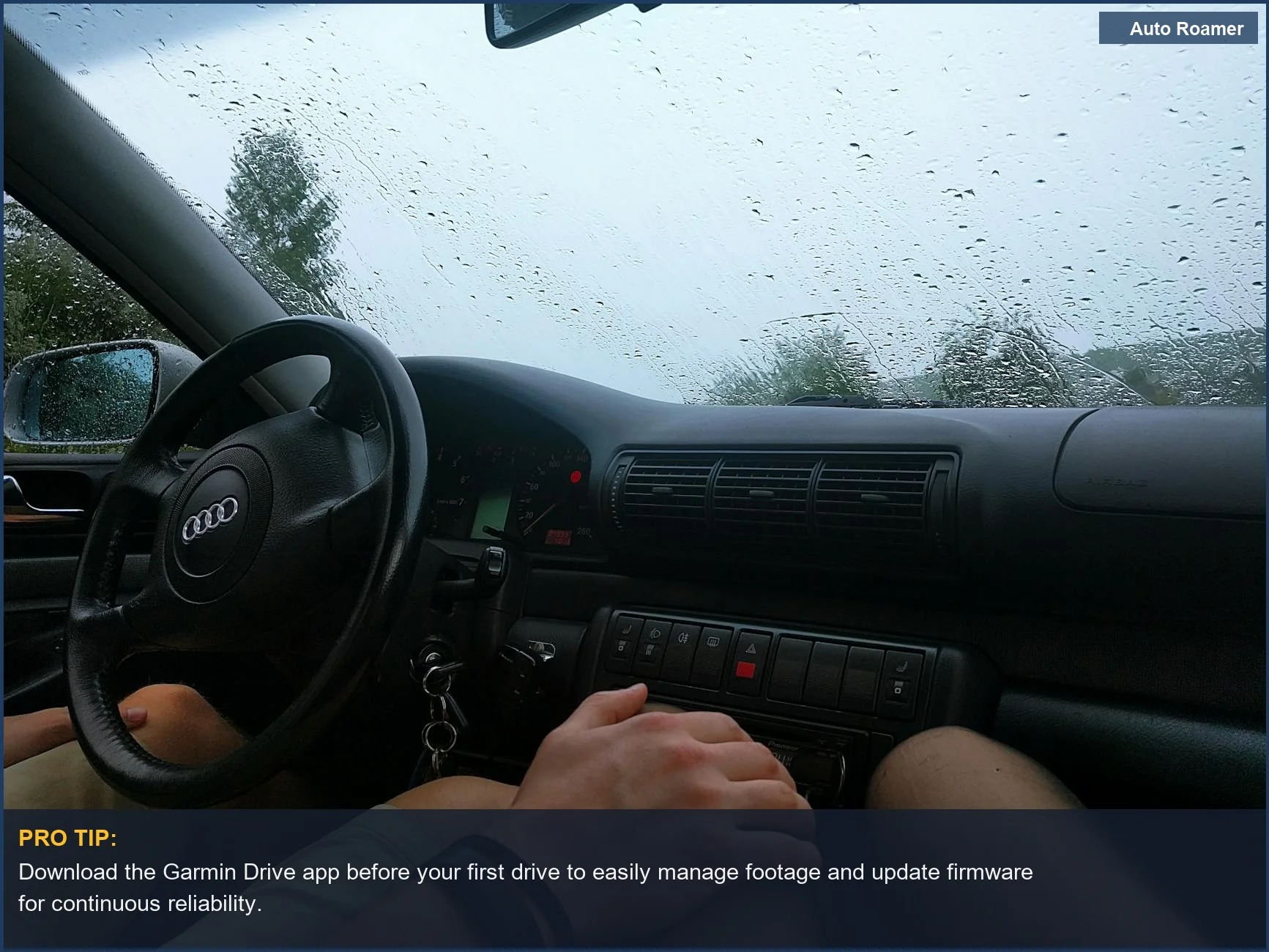
Even on a rainy day, the Garmin Dash Cam Mini 2 remains ready to record. Download the Garmin Drive app for seamless footage management.
| Photo by Diana ✨
Even on a rainy day, the Garmin Dash Cam Mini 2 remains ready to record. Download the Garmin Drive app for seamless footage management.
| Photo by Diana ✨
What This Looks Like in Practice
Highway Commute in a Sedan: We were on a long stretch of highway in our sedan when a sudden, aggressive lane change by a truck forced us to brake hard. The Garmin Dash Cam Mini 2 captured the entire incident clearly, including the truck's license plate. Its compact size meant it was barely noticeable behind the rearview mirror, and the automatic recording kicked in without a hitch. The ability to easily access and save the footage via the Garmin Drive app was crucial for our peace of mind.
City Driving in an SUV during Dusk: Navigating busy city streets as the light faded presented a common challenge for dash cams. The Garmin Dash Cam Mini 2 performed admirably, capturing sufficient detail of near-misses and pedestrian activity. While not designed for extreme low-light, the footage was clear enough to identify vehicles and actions. We appreciated the voice control feature to save clips without fumbling for buttons.
Rural Road Trip in a Pickup Truck: Driving on a less-trafficked rural road, we encountered wildlife unexpectedly darting across the path. The wide field of view from the Garmin Dash Cam Mini 2 was instrumental in capturing the animal's movement and our evasive maneuver. The camera's discreet design meant it didn't obstruct our view. The ease of pairing the device with our smartphone within 3 meters using the Garmin Drive app allowed us to quickly review and secure the footage.
To enhance your driving experience even further, consider the advanced features of the Garmin Dash Cam 67w.
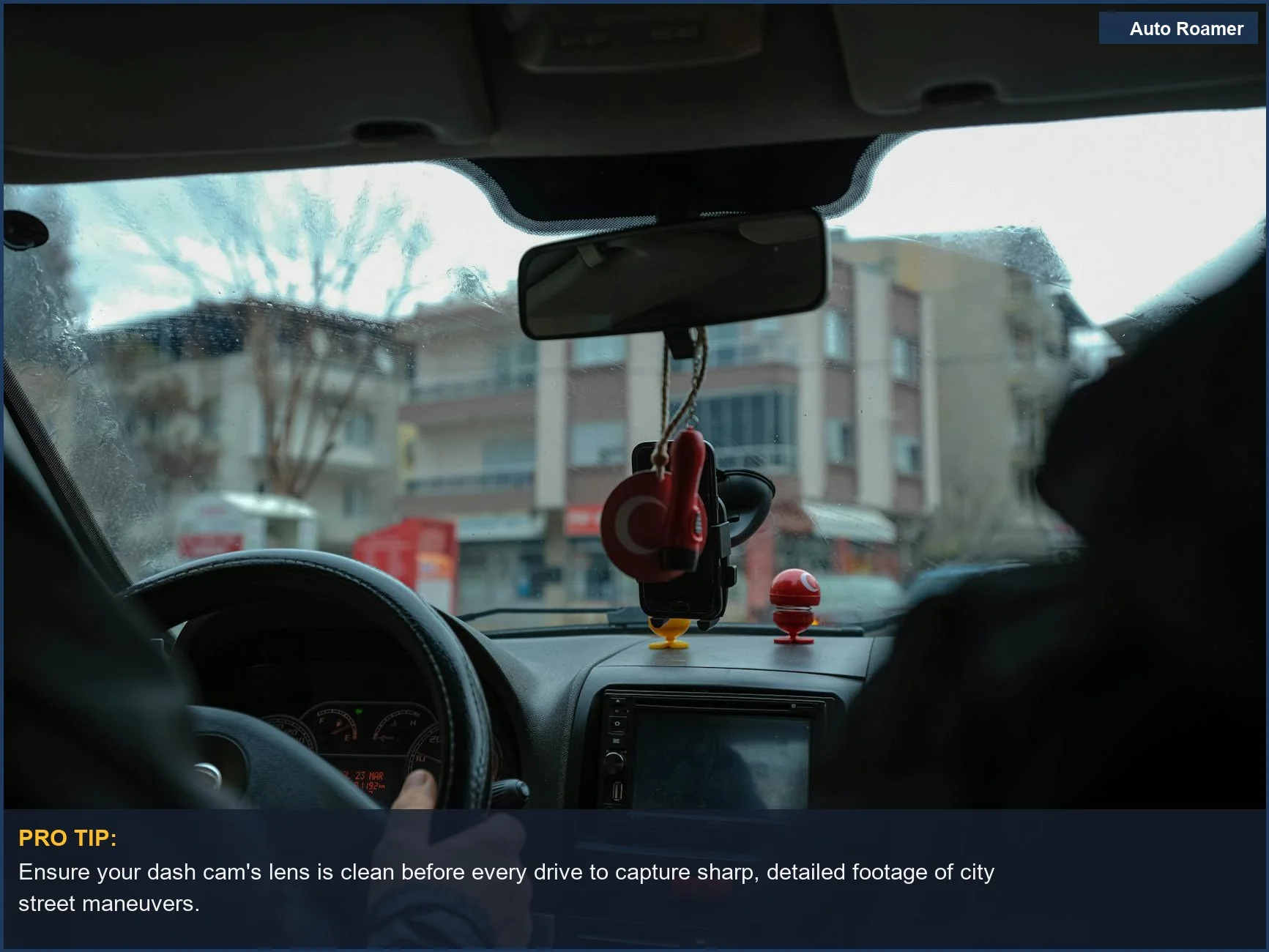
From a driver's perspective in a city, the Garmin Dash Cam Mini 2 offers a clear view, capturing every detail of your commute effectively.
| Photo by Sicker
From a driver's perspective in a city, the Garmin Dash Cam Mini 2 offers a clear view, capturing every detail of your commute effectively.
| Photo by Sicker
Mistakes That Cost People
Here are common mistakes people make with their garmin dash cam mini 2, and how to avoid them:
Symptom Dash cam footage is blurry or unusable, especially at night.
Signal You review footage and struggle to read license plates or see details clearly.
Fix Ensure the lens is clean. A simple wipe with a microfiber cloth before each drive makes a huge difference. Also, check that the Garmin Drive app settings are optimized for low-light recording if available, though the Mini 2 is generally strong here. Garmin Dash Cam Mini 2 Owner's Manual
Symptom You miss crucial events because the dash cam only records short clips.
Signal You review footage and find gaps between recorded segments, or the dash cam stops recording unexpectedly.
Fix This isn't a setting you need to configure; the dash cam is designed to record continuously until the memory card is full, overwriting the oldest footage. If you're experiencing gaps, it's likely a faulty microSD card or insufficient card capacity. Use a high-quality, high-endurance card (Class 10 or U3 recommended) and format it regularly through the Garmin Drive app. Garmin Dash Cam Mini 2 - Device Overview
Symptom The dash cam is constantly disconnecting from your phone or not pairing.
Signal The Garmin Drive app shows the camera as offline or fails to connect.
Fix Make sure your smartphone and the dash cam are within 3 meters (10 ft.) of each other during pairing, as specified by Garmin. Pairing with Your Smartphone. Also, ensure both Bluetooth and Wi-Fi are enabled on your phone and that you've installed the latest version of the Garmin Drive app.
Symptom You rely on the dash cam for parking incidents, but it's not recording when the car is off.
Signal You review footage and find no recordings from when the vehicle was parked and unattended.
Fix The standard USB power cable included with the garmin dash cam mini 2 only powers the device when the car is running. To enable parking surveillance mode, you must purchase and install the Garmin parking-specific cable (sold separately). This cable uses the vehicle's battery to power the dash cam even when the ignition is off, triggering recording upon impact detection.
Symptom You think you need to manually save every important clip.
Signal You find yourself constantly pressing the save button on the dash cam or using the app to save clips.
Fix The Garmin Dash Cam Mini 2 has a built-in accelerometer that automatically detects impacts or sudden changes in motion. When an incident is detected, it automatically saves a video clip. You only need to manually save clips for events you want to preserve that the camera might not automatically flag. Garmin Dash Cam Mini 2
Symptom You're concerned about privacy and want to ensure audio isn't being recorded.
Signal You're unsure if the microphone is active or how to control it.
Fix The dash cam has a dedicated button to enable or disable audio recording. A quick press will toggle the microphone on or off. It's good practice to check this setting, especially if you're driving in areas with strict audio recording laws or simply want to ensure your conversations aren't captured. Garmin Dash Cam Mini 2 - Device Overview
Understanding these common mistakes can help you make a better choice when comparing models like the Garmin and Nextbase dash cams in our 2025 comparison.
Comparison overview for garmin dash cam mini 2
Key Takeaways
The Garmin Dash Cam Mini 2 is an incredibly discreet and easy-to-use dash camera that captures crucial footage in 1080p. It pairs seamlessly with your smartphone via the Garmin Drive app, giving you instant access to your recordings and settings Garmin Dash Cam Mini 2 - Pairing with Your Smartphone.
Its compact size makes it virtually unnoticeable, blending in behind your rearview mirror facebook. Setting it up is straightforward; just install the Garmin Drive app and follow the on-screen prompts to pair your device and smartphone within 3 m (10 ft.) Garmin Dash Cam Mini 2 - Pairing with Your Smartphone.
Voice control is a standout feature, allowing you to save footage, take pictures, and start/stop audio recording without taking your hands off the wheel x. The ability to format the memory card is also a simple press-and-hold operation Garmin Dash Cam Mini 2 - Device Overview.
The Garmin Dash Cam Mini 2 offers dependable recording for everyday drivers, providing essential evidence when you need it most.
To enhance your dash cam experience, consider learning about the benefits of a universal dash cam mount.
Frequently Asked Questions
What are the standout features of this compact dash cam?
This little camera packs a punch with its 1440p resolution for crisp footage and a 140-degree field of view, ensuring you capture plenty of the road. We found the voice control incredibly handy for saving clips or starting/stopping audio recording without fumbling for buttons, especially when we were focused on navigating rough terrain. Plus, its ability to wirelessly share footage to your smartphone via the Garmin Drive app is a real time-saver when you need to review or share an incident.
How well does it perform when it gets dark out on the road?
We've tested this camera in some pretty dim conditions, and it holds its own thanks to its excellent low-light performance. It utilizes HDR (High Dynamic Range) technology, which really helps to balance out bright headlights and dark shadows, making details more visible. While it won't magically turn night into day, we were impressed with the clarity of road signs and other vehicles captured even after sunset, which is crucial for any dash cam.
Are there any state laws I need to worry about regarding using this dash cam?
Generally, using a dash cam like this is legal across the US for recording your own driving, but privacy laws can get tricky. Some states have 'all-party consent' laws for recording audio, meaning you might need consent from everyone in the car to record sound NHTSA. We always recommend checking your specific state's laws and disabling audio recording if you're unsure or traveling through a consent state to stay on the safe side.
Will this little camera fit and mount in pretty much any vehicle?
Absolutely, its compact size is one of its biggest advantages. We've mounted it behind the rearview mirror in our old pickup truck and discreetly in the corner of the windshield in our van, and it fits seamlessly. It comes with a low-profile adhesive mount that adheres securely to the glass, so it shouldn't pose any issues for most car, truck, or RV windshields.
What's the go-to fix if my dash cam starts acting up or shows an error?
If we encounter an error, the first thing we usually try is a simple power cycle - unplug it, wait a minute, and plug it back in. If that doesn't clear it, formatting the microSD card through the Garmin Drive app is often the solution for glitches Garmin Manual. If problems persist, checking the Garmin support website or contacting their customer service is your best bet for more in-depth troubleshooting.